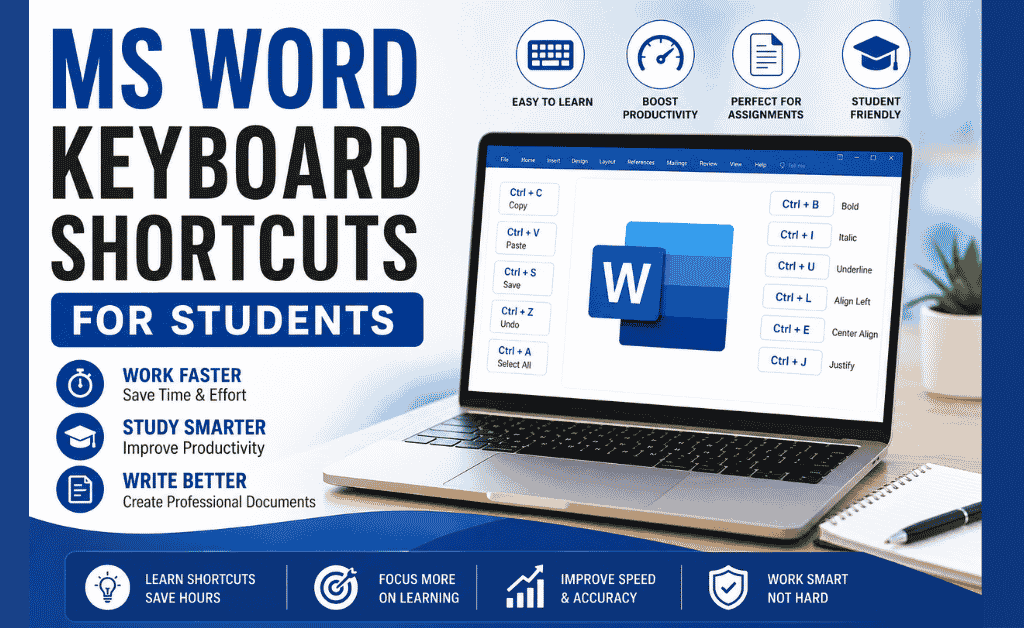
MS Word Keyboard Shortcuts are essential for every student because Microsoft Word is one of the most important tools used in daily academic work. Whether you’re writing assignments, preparing reports, creating notes, or formatting documents, knowing these shortcuts can save you hours and make your work much faster, smoother, and more professional.
This guide covers the most useful MS Word Keyboard Shortcuts for students, categorized for easy learning.
Table of Contents
What Are MS Word Keyboard Shortcuts?
Keyboard shortcuts are quick key combinations (like Ctrl + C, Ctrl + B) that help you perform actions without using the mouse. They make typing, editing, and formatting significantly faster.
In colleges and universities, students who use shortcuts complete their work more efficiently—especially during assignment deadlines and exams.
Why Students Should Use MS Word Keyboard Shortcuts
Students benefit from keyboard shortcuts because they help:
- Work faster
- Format assignments properly
- Reduce typing time
- Improve productivity
- Avoid repeated mouse clicks
- Maintain consistent formatting
These shortcuts are especially helpful for English assignments, research reports, project files, and presentations.
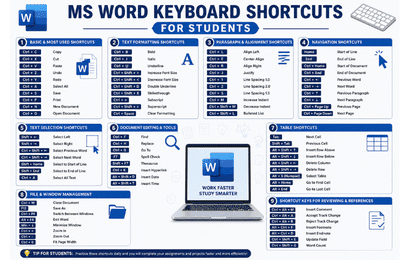
1. Basic & Most Used Shortcuts
- Copy (Ctrl + C)
- Paste (Ctrl + V)
- Cut (Ctrl + X)
- Undo (Ctrl + Z)
- Redo (Ctrl + Y)
- Select All (Ctrl + A)
- Save Document (Ctrl + S)
- Open Document (Ctrl + O)
- Create New Document (Ctrl + N)
- Print Document (Ctrl + P)
- Close Document (Ctrl + W)
- Exit MS Word (Alt + F4)
Key Features:
These shortcuts help you perform essential editing tasks instantly without relying on the mouse. Students completing assignments or reports can quickly copy, paste, undo mistakes, and save their work effortlessly. They significantly reduce editing time and improve overall writing efficiency.
2. Text Formatting Shortcuts
Action Shortcut
Bold (Ctrl + B)
Italic (Ctrl + I)
Underline (Ctrl + U)
Double Underline (Ctrl + Shift + D)
Strikethrough (Ctrl + Shift + X)
Subscript (Ctrl + =)
Superscript (Ctrl + Shift + =)
Change Case (Shift + F3)
Clear Formatting (Ctrl + Spacebar)
Increase Font Size (Ctrl + Shift + >)
Decrease Font Size (Ctrl + Shift + <)
Key Features:
Formatting shortcuts make your text look clean, professional, and well-organized. You can bold, italicize, underline, or change font sizes within seconds, improving the presentation of your assignments and documents. These shortcuts help maintain consistency across headings and body text.
3. Paragraph & Alignment Shortcuts
Action Shortcut
Left Align (Ctrl + L)
Center Align (Ctrl + E)
Right Align (Ctrl + R)
Justify Align (Ctrl + J)
Line Spacing 1.0 (Ctrl + 1)
Line Spacing 2.0 (Ctrl + 2)
Line Spacing 1.5 (Ctrl + 5)
Increase Indent (Ctrl + M)
Decrease Indent (Ctrl + Shift + M)
Insert Line Break (Shift + Enter)
Key Features:
These shortcuts help you structure your paragraphs neatly with proper alignment and spacing. Whether you’re preparing essays or reports, these commands ensure that your document layout looks polished and readable. They make formatting faster and more consistent across the entire document.
4. Navigation Shortcuts
Action Shortcut
Go to Start of Line (Home)
Go to End of Line (End)
Move to Start of Document (Ctrl + Home)
Move to End of Document (Ctrl + End)
Move One Word Left (Ctrl + ←)
Move One Word Right (Ctrl + →)
Move One Paragraph Up (Ctrl + ↑)
Move One Paragraph Down (Ctrl + ↓)
Key Features:
Navigation shortcuts allow you to jump across long documents instantly, saving time when reviewing or editing work. Instead of scrolling, you can go directly to the beginning, end, previous page, or a specific section. This is extremely useful for lengthy assignments, reports, or thesis writing.
5. Text Selection Shortcuts
Action Shortcut
Select One Character Left (Shift + ←)
Select One Character Right (Shift + →)
Select One Word Left (Ctrl + Shift + ←)
Select One Word Right (Ctrl + Shift + →)
Select to Start of Line (Shift + Home)
Select to End of Line (Shift + End)
Select All Text (Ctrl + A)
Key Features:
These shortcuts improve precision when selecting words, lines, or entire paragraphs. They help students edit, delete, or format text quickly. Perfect for writing tasks where frequent corrections or re-phrasing is needed.
6. Document Editing & Tools
Action Shortcut
Find (Ctrl + F)
Replace (Ctrl + H)
Go To (Ctrl + G)
Spell Check (F7)
Thesaurus (Shift + F7)
Insert Hyperlink (Ctrl + K)
Insert Date/Time (Alt + Shift + D / T)
Key Features:
These shortcuts let you access Word tools like Find, Replace, Spell Check, and Thesaurus instantly. Students can fix errors, replace words, and improve vocabulary without breaking workflow. This makes editing faster and documents more polished.
7. Screenshot Shortcuts
Action Shortcut
Move to Next Cell (Tab)
Move to Previous Cell (Shift + Tab)
Insert Row Above (Alt + Shift + ↑)
Insert Row Below (Alt + Shift + ↓)
Select Entire Table (Alt + 5 (NumPad))
Key Features:
Table shortcuts simplify formatting, navigating, and editing tables in Word. Students working on assignments, data sheets, or project summaries can manage rows and columns more efficiently. These shortcuts make structured information easy to organize.
8. File & Window Management
Action Shortcut
Switch Between Windows (Ctrl + F6)
Minimize Window (Win + ↓)
Zoom In (Ctrl + +)
Zoom Out (Ctrl + -)
Key Features:
These shortcuts help you open, close, save, and switch files instantly. Students handling multiple assignments benefit from faster file management. It improves workflow efficiency during tight deadlines or exams.
9. Shortcut Keys for Reviewing & References
Action Shortcut
Add New Comment (Ctrl + Alt + M)
Accept Track Change (Ctrl + Alt + A)
Insert Footnote (Alt + Ctrl + F)
Insert Endnote (Alt + Ctrl + D)
Key Features:
These shortcuts speed up proofreading, adding comments, and managing references. Students writing reports, research papers, and essays can review content more professionally. They help maintain accuracy, citation clarity, and academic quality.
MS Word Keyboard Shortcuts for Assignments
These shortcuts help students prepare neat and clean reports:
F12 → Save as PDF or new version
Ctrl + J → Justify important paragraphs
Ctrl + 2 → Double spacing for English assignments
Ctrl + Shift + > → Increase heading size
Alt + N, T → Insert tables
Ctrl + K → Add website references
Final Tips for Students
- Learn 5 shortcuts daily
- Practice on your real assignments
- Use shortcuts for formatting headings
- Save your work frequently
- Keep your files organized
These shortcuts will make your workflow faster, cleaner, and more professional.
Job Portal for Students & Freelancers
Looking for jobs or internships?
✔ Latest Jobs in Pakistan
✔ Freelancing Opportunities
✔ Remote Jobs
✔ Student Internships
📌 Aspirian.pk job portal helps you find online earning opportunities, career growth, and latest job updates.
Looking for a Better Job? Start Your Career Journey Today!
Find the latest fresh jobs, internships, online earning opportunities, and skill-based career options — all in one place.
Explore Free Online Tools on Aspirian.pk
Popular Free Online AI Tools You May Like
- Roman Urdu to English – A simple translator for basic sentences.
- Number to Words – Convert figures into words
- GPA & Grade Calculator – Calculate board percentages and grades.
- Age Calculator – Find your exact age
- MS Word to PDF – Word to PDF Converter
- Lorem Ipsum Generator – Professional dummy text tool.
Explore all tools here:
Free Online Tools for Students – Aspirian.pk

Boost Your Tech Career
Want to learn programming and freelancing skills?
✔ Python Programming
✔ Web Development
✔ Digital Markting
✔ WordPress Mastery
✔ AI Automation
✔ Freelancing Skills
✔ AI Tools Training
Start your journey towards a successful tech career today.

Frequently Asked Questions (FAQs)
1. Are MS Word shortcuts the same for Windows and Mac?
Most are similar, but Mac uses Command (⌘) instead of Ctrl.
2. Are shortcuts useful for assignments?
Yes! Shortcuts help format headings, spacing, and paragraphs quickly.
3. Can shortcuts help improve document quality?
Absolutely — your assignments will look more professional with proper formatting.
4. How do I learn shortcuts faster?
Practice them daily while writing assignments.
5. Do these shortcuts work in older versions of Word?
Yes, thYes, most shortcuts work in Word 2010, 2013, 2016, 2019, and Office 365.