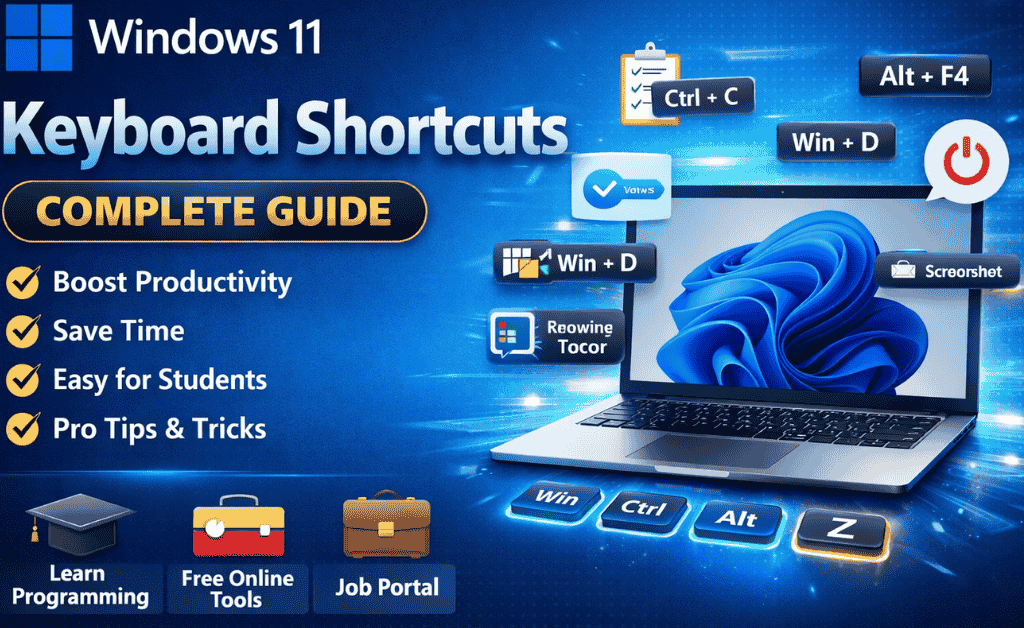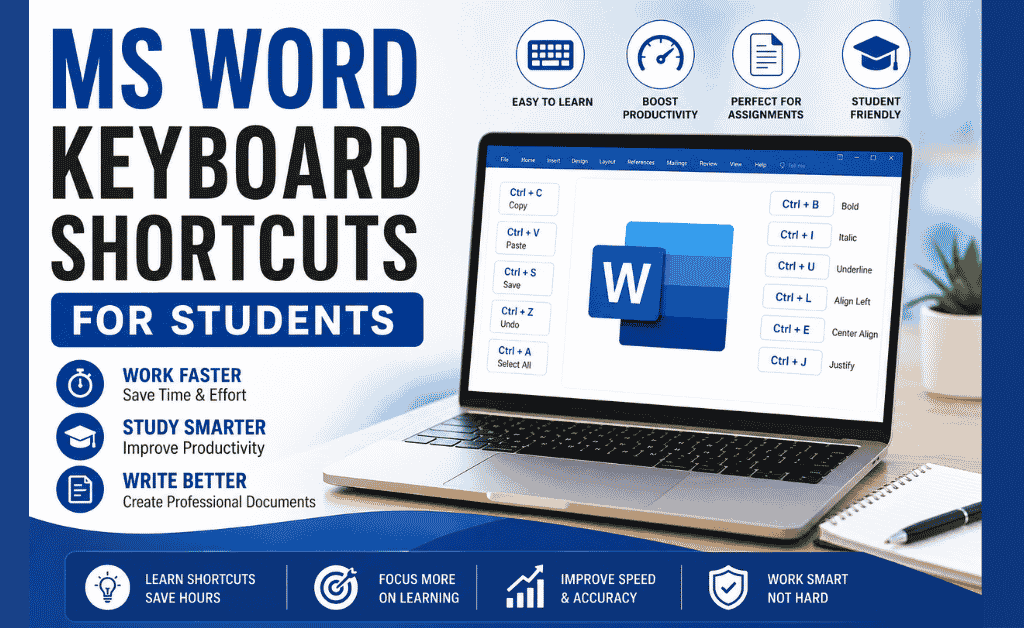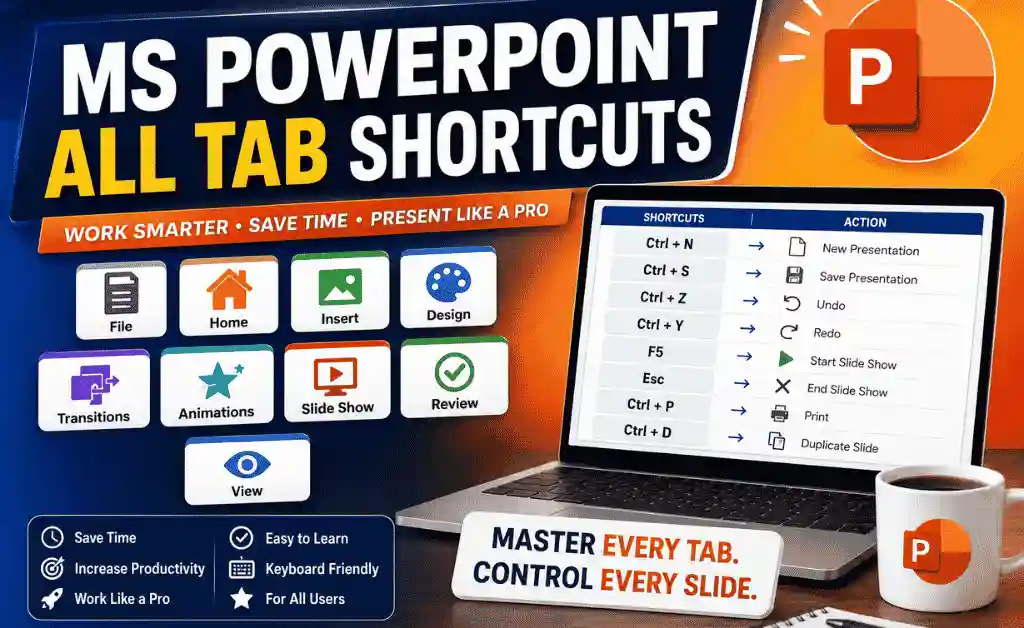
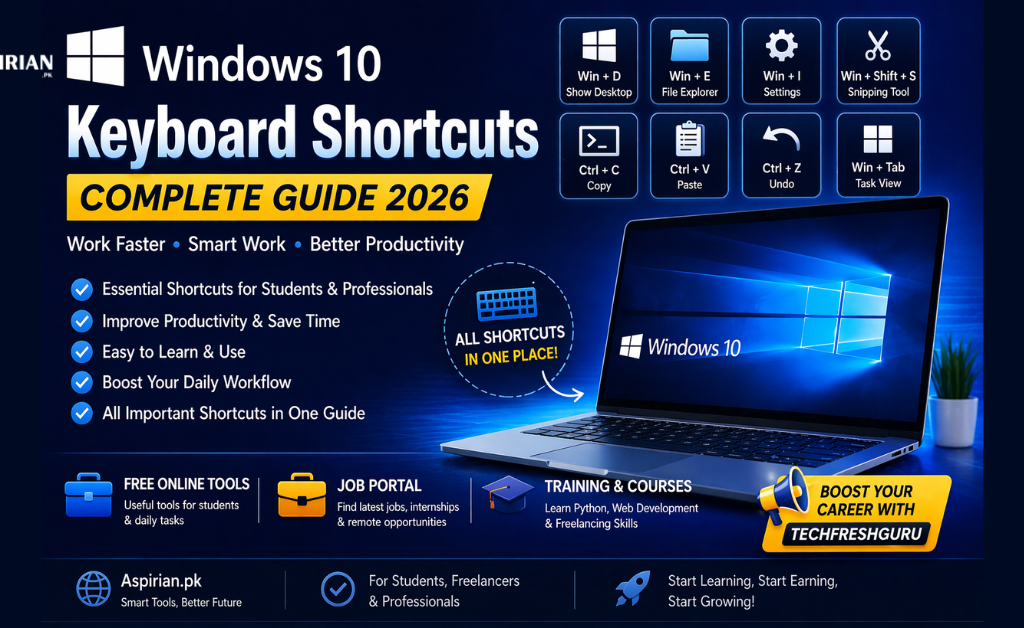
If you are using a Windows 10 PC or laptop, learning Windows 10 Keyboard Shortcuts can make your work faster, smarter, and more productive.
In this complete guide, we have explained all Windows 10 keyboard shortcuts in an easy way so that students, freelancers, and professionals can improve their workflow and save time.
Table of Contents
Most Common Windows 10 Keyboard Shortcuts (Daily Use)
These are the most frequently used Windows 10 Keyboard Shortcuts in daily computer tasks:
- Ctrl + C (Copy)
- Ctrl + V (Paste)
- Ctrl + X (Cut)
- Ctrl + Z (Undo)
- Ctrl + Y (Redo)
- Ctrl + A (Select All)
- Ctrl + S (Save)
- Ctrl + P (Print)
- Alt + Tab (Switch between apps)
- Alt + F4 (Close app)
- PrtScn (Screenshot)
Description:
These basic Windows 10 keyboard shortcuts are essential for students and office users. They help in fast typing, document editing, file management, and productivity improvement, making your daily tasks easier and faster.
Windows Key Shortcuts (Win Key Tricks)
These shortcuts help you control your system quickly:
- Win (Open Start Menu)
- Win + A (Action Center)
- Win + I (Settings)
- Win + E (File Explorer)
- Win + D (Show Desktop)
- Win + L (Lock PC)
- Win + M (Minimize all Windows)
- Win + Tab (Task View)
- Win + R (Run Dialog)
- Win + S (Search)
- Win + X (Power Menu)
- Win + V (Clipboard History)
- Win + Shift + S (Snipping Tool)
Description:
These Windows 10 keyboard shortcuts allow quick navigation, system control, and multitasking, helping users work more efficiently and save time.
Virtual Desktop Shortcuts
Useful for managing multiple workspaces:
- Win + Ctrl + D (Create New Desktop)
- Win + Ctrl + F4 (Close Desktop)
- Win + Ctrl + Left/Right (Switch Desktop)
- Win + Tab (View All Desktops)
Description:
These virtual desktop Windows 10 keyboard shortcuts help in multitasking, workspace organization, and productivity boost, especially for freelancers and developers.
Window Management Shortcuts
Organize your screen efficiently:
- Win + Arrow Keys (Snap windows)
- Win + Home (Minimize all except active window)
- Win + Shift + Left/Right (Move window between screens)
Description:
These window management Windows 10 Keyboard Shortcuts improve screen organization, multitasking, and workflow efficiency, making your work more professional.
Taskbar Shortcuts
Quick access to applications:
- Win + 1 / 2 / 3 (Open pinned apps)
- Win + T (Cycle taskbar apps)
- Shift + Click (Open new instance)
Description:
These taskbar shortcuts Windows 10 Keyboard Shortcuts help in quick app launching, switching, and workflow optimization, especially useful in office work.
File Explorer Shortcuts
Manage files and folders easily:
- Ctrl + N (New Window)
- Ctrl + Shift + N (New Folder)
- F2 (Rename)
- Alt + Arrow Keys (Navigation)
- Shift + Delete (Permanent Delete)
Description:
These file explorer shortcuts Windows 10 Keyboard Shortcuts help in file organization, data management, and faster navigation, making them essential for daily use.
Screenshot Shortcuts
Capture your screen:
- PrtScn (Full Screenshot)
- Alt + PrtScn (Active Window)
- Win + PrtScn (Save Screenshot)
- Win + Shift + S (Snipping Tool)
Description:
These screenshot Windows 10 Keyboard Shortcuts are useful for students, bloggers, and content creators who need quick screen capture tools.
Accessibility Shortcuts
Ease of access features:
- Win + + (Magnifier)
- Win + Esc (Close Magnifier)
- Win + Ctrl + Enter (Narrator)
Description:
These accessibility Windows 10 Keyboard Shortcuts improve usability, screen reading, and assistive features, making Windows easier to use.
Text Editing Shortcuts
Improve typing speed:
- Ctrl + B (Bold)
- Ctrl + I (Italic)
- Ctrl + U (Underline)
- Ctrl + Backspace (Delete word)
- Home / End (Move cursor)
Description:
These text editing Windows 10 Keyboard Shortcuts are essential for content writing, blogging, and document editing, improving speed and efficiency.
Command Prompt Shortcuts
For advanced users:
- Ctrl + C (Stop command)
- Ctrl + V (Paste)
- Up/Down Arrows (Command history)
Description:
These CMD Windows 10 Keyboard Shortcuts are useful for developers, programmers, and IT students, improving command-line productivity.
Power & System Shortcuts
Control system quickly:
- Ctrl + Alt + Delete (Security screen)
- Alt + F4 (Shutdown menu)
- Win + X (Power options)
Description:
These power Windows 10 Keyboard Shortcuts help in system control, shutdown, restart, and security access, saving time and effort.
Bonus: Useful Hidden Shortcuts
- Shift + F10 (Right-click menu)
- Ctrl + Shift + Esc (Task Manager)
- Win + Pause (System Info)
- Win + Ctrl + Shift + B (Fix screen issue)
Conclusion
Learning Windows 10 keyboard shortcuts can make your work:
✔ Faster
✔ Smarter
✔ More Efficient
Whether you are a student, freelancer, or office worker, these shortcuts will significantly improve your productivity.
Job Portal for Students & Freelancers
Looking for jobs or internships?
✔ Latest Jobs in Pakistan
✔ Freelancing Opportunities
✔ Remote Jobs
✔ Student Internships
📌 Aspirian.pk job portal helps you find online earning opportunities, career growth, and latest job updates.
Looking for a Better Job? Start Your Career Journey Today!
Find the latest fresh jobs, internships, online earning opportunities, and skill-based career options — all in one place.
Explore Free Online Tools on Aspirian.pk
Popular Free Online AI Tools You May Like
- Roman Urdu to English – A simple translator for basic sentences.
- Number to Words – Convert figures into words
- GPA & Grade Calculator – Calculate board percentages and grades.
- Age Calculator – Find your exact age
- MS Word to PDF – Word to PDF Converter
- Lorem Ipsum Generator – Professional dummy text tool.
Explore all tools here:
Free Online Tools for Students – Aspirian.pk

Boost Your Tech Career
Want to learn programming and freelancing skills?
👉 Our Trending Courses
✔ Python Programming
✔ Web Development
✔ Digital Markting
✔ WordPress Mastery
✔ AI Automation
✔ Freelancing Skills
✔ AI Tools Training
Start your journey towards a successful tech career today.

Frequently Asked Questions (FAQs)
What does this tool count?
Words, characters, sentences, paragraphs, and reading time.
Is this tool free to use?
Yes, completely free.
Can I use it on mobile?
Yes, the tool works perfectly on all mobile devices.
Does it support Urdu or Roman Urdu?
Yes, you can paste any language text.
Are the results accurate?
Yes, the tool provides 100% accurate counts.