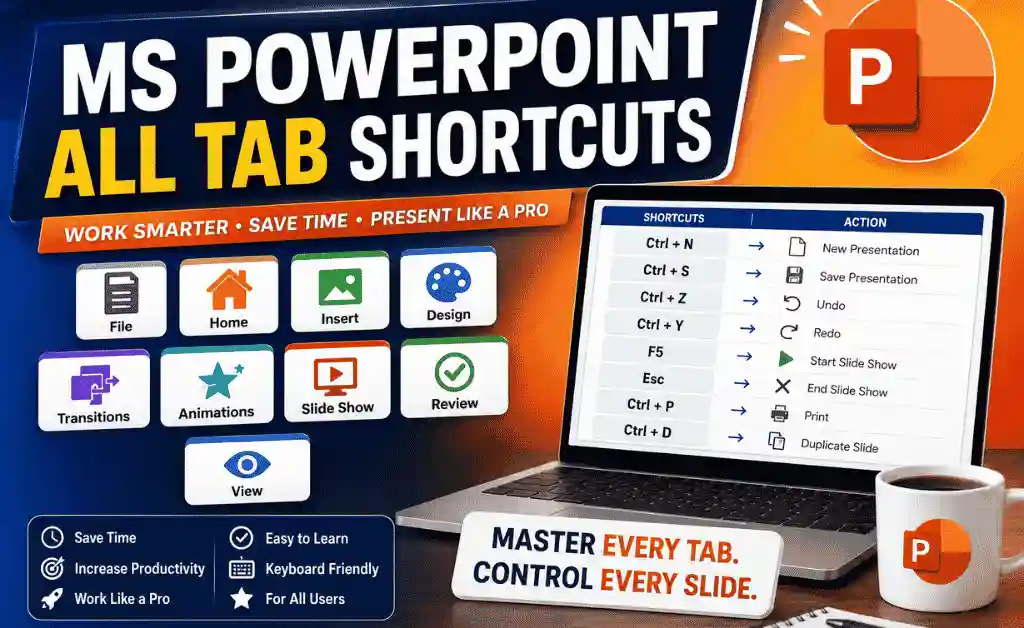
Microsoft PowerPoint is one of the world’s most powerful presentation tools, used daily by students, teachers, professionals, corporate teams, freelancers, and public speakers. Whether you’re preparing school slides, business proposals, training presentations, or creative storytelling decks — PowerPoint shortcuts help you work faster, smarter, and more efficiently.
In this complete guide, you’ll learn every essential PowerPoint keyboard shortcut, organized tab-wise for maximum clarity. You’ll not only memorize shortcuts, but also understand what each one does, so you can create stunning presentations in a fraction of the time.
If you want to become a PowerPoint expert and boost your productivity, this guide is for you.
Table of Contents
What You Will Learn from This Guide
This guide gives you the most complete, beginner-friendly, and professionally structured list of Microsoft PowerPoint shortcuts, including:
- Full Tab-Wise Shortcuts (Home, Insert, Design, Transitions, Animations, Slide Show, Review, View)
- Slide creation & navigation shortcuts
- Text formatting & editing shortcuts
- Shape formatting & alignment shortcuts
- SmartArt, charts, media & drawing shortcuts
- Presentation delivery shortcuts
- Ribbon & quick access shortcuts
Whether you’re a student creating school assignments, a professional delivering presentations at work, or a freelancer designing client slides — these shortcuts will boost your workflow instantly.
Why MS PowerPoint Keyboard Shortcuts Matter
Keyboard shortcuts are not just for advanced users — they save time, improve your quality, and make your workflow smoother. Here’s why learning them matters:
Work 3× Faster: Reduce your design time from hours to minutes.
Create Cleaner Designs: Quick alignment, resizing, formatting, and organization.
Manage Slides Efficiently: Switch, duplicate, delete, and organize slides instantly.
Focus on Creativity: Spend less time clicking and more time designing.
Complete MS PowerPoint Keyboard Shortcuts (Tab-Wise Guide)
Mastering Microsoft PowerPoint becomes significantly easier when you know how to use it efficiently—and nothing improves your speed more than keyboard shortcuts. This Complete Tab-Wise PowerPoint Keyboard Shortcuts Guide is designed to give you a clear, structured, and beginner-friendly understanding of every shortcut you actually need to work faster and create professional presentations.
PowerPoint is divided into multiple tabs such as Home, Insert, Design, Transitions, Animations, Slide Show, Review, and View. Each tab contains groups of tools used for formatting, designing, editing, and presenting slides. Instead of mixing shortcuts randomly, this guide organizes all shortcuts exactly the way PowerPoint itself is organized—tab by tab, feature by feature, and purpose by purpose.
This structured, tab-wise approach makes the shortcuts easier to understand, memorize, and apply in real presentation work. Whether you’re a student preparing assignments, a teacher giving lectures, a business professional presenting to clients, or a content creator designing visually engaging slides—these shortcuts will drastically improve your workflow.
This detailed shortcut guide allows you to:
- Create new slides instantly and format them faster
- Insert tables, photos, shapes, charts, SmartArt, and media without clicking through menus
- Apply themes, transitions, animations, and effects more efficiently
- Move, edit, align, duplicate, and resize objects with precision
- Navigate through slides smoothly while editing or presenting
- Deliver presentations confidently using professional presenter shortcuts
By learning these tab-wise shortcuts, you can reduce hours of mouse clicking into just a few keystrokes, boosting your productivity and creativity. This guide not only lists the shortcuts—but also clearly explains what each one does—so you fully understand how and when to use them.
If you want to become a PowerPoint expert, improve your presentation design speed, and work like a true professional, then this Complete MS PowerPoint Keyboard Shortcuts Tab-Wise Guide is your ultimate learning resource.
Home Tab Shortcuts
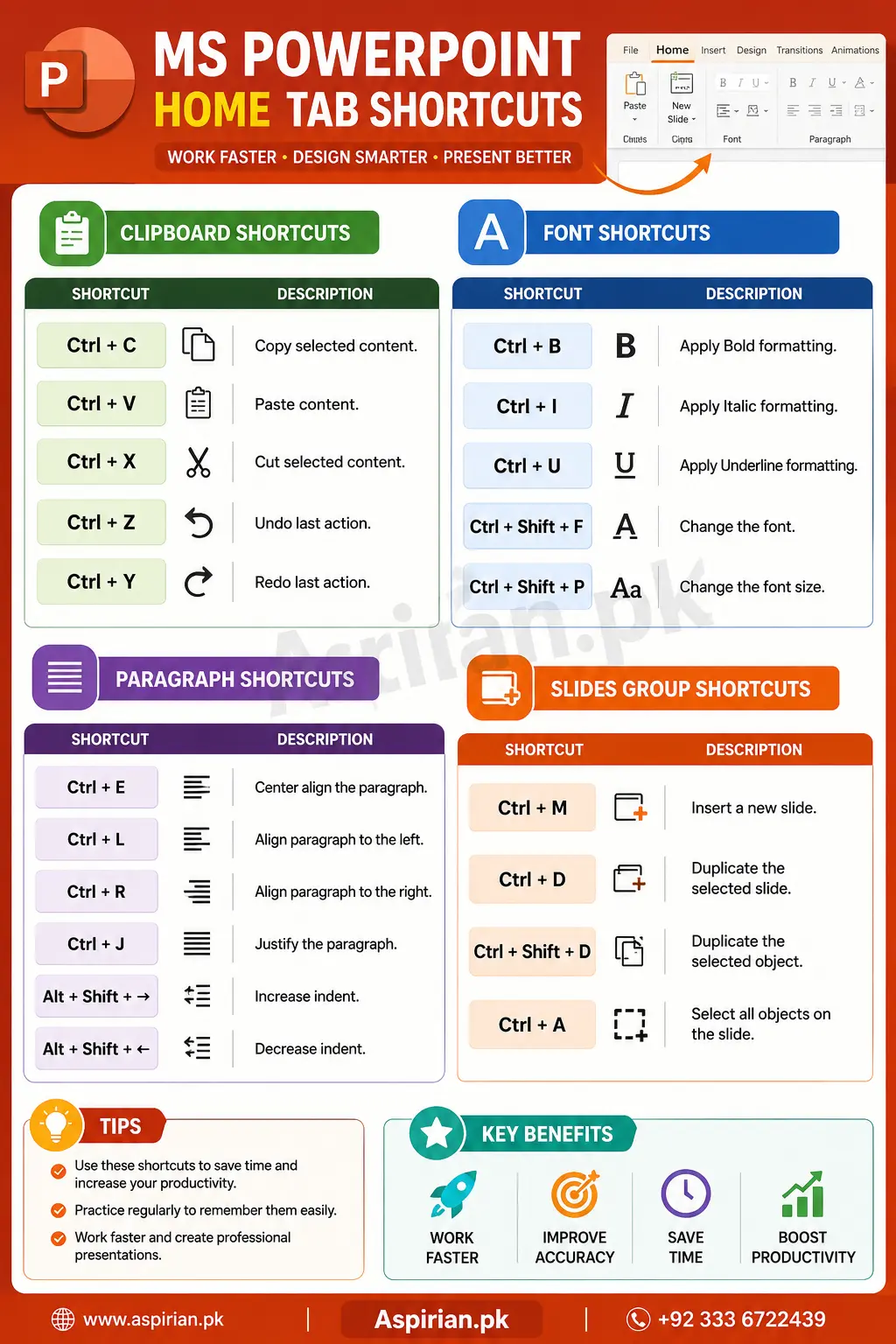
The Home Tab is where most day-to-day tasks happen — text formatting, slide management, paragraph settings, drawing tools, and clipboard operations. These shortcuts make your slide editing extremely fast.
1. Clipboard Shortcuts
Ctrl + C — Copy
Ctrl + X — Cut
Ctrl + V — Paste
Ctrl + Shift + V — Paste Formatting
Ctrl + Z — Undo
Ctrl + Y — Redo
2. Font & Formatting Shortcuts
Ctrl + B — Bold
Ctrl + I — Italic
Ctrl + U — Underline
Ctrl + Shift + > — Increase Font Size
Ctrl + Shift + < — Decrease Font Size
Ctrl + T — Open Font Dialog
Ctrl + Shift + C — Copy Formatting
Ctrl + Shift + V — Paste Formatting
3. Paragraph Shortcuts
Ctrl + E — Center Align
Ctrl + L — Left Align
Ctrl + R — Right Align
Ctrl + J — Justify
Ctrl + M — Increase Indent
Ctrl + Shift + M — Decrease Indent
Alt + Shift + Up/Down — Move Paragraph Up/Down
4. Slides Shortcuts
Ctrl + M — New Slide
Ctrl + Shift + D — Duplicate Slide
Delete — Delete Slide Object
Ctrl + D — Duplicate Selected Object
Key Features of Home Tab
The Home Tab shortcuts help users format text, adjust layout, organize content, and build slides quickly. With fast access to clipboard operations, alignment tools, slide creation, and drawing options, the Home Tab forms the foundation of efficient presentation designing. Mastering these shortcuts dramatically speeds up your workflow and improves slide quality.
Insert Tab Shortcuts
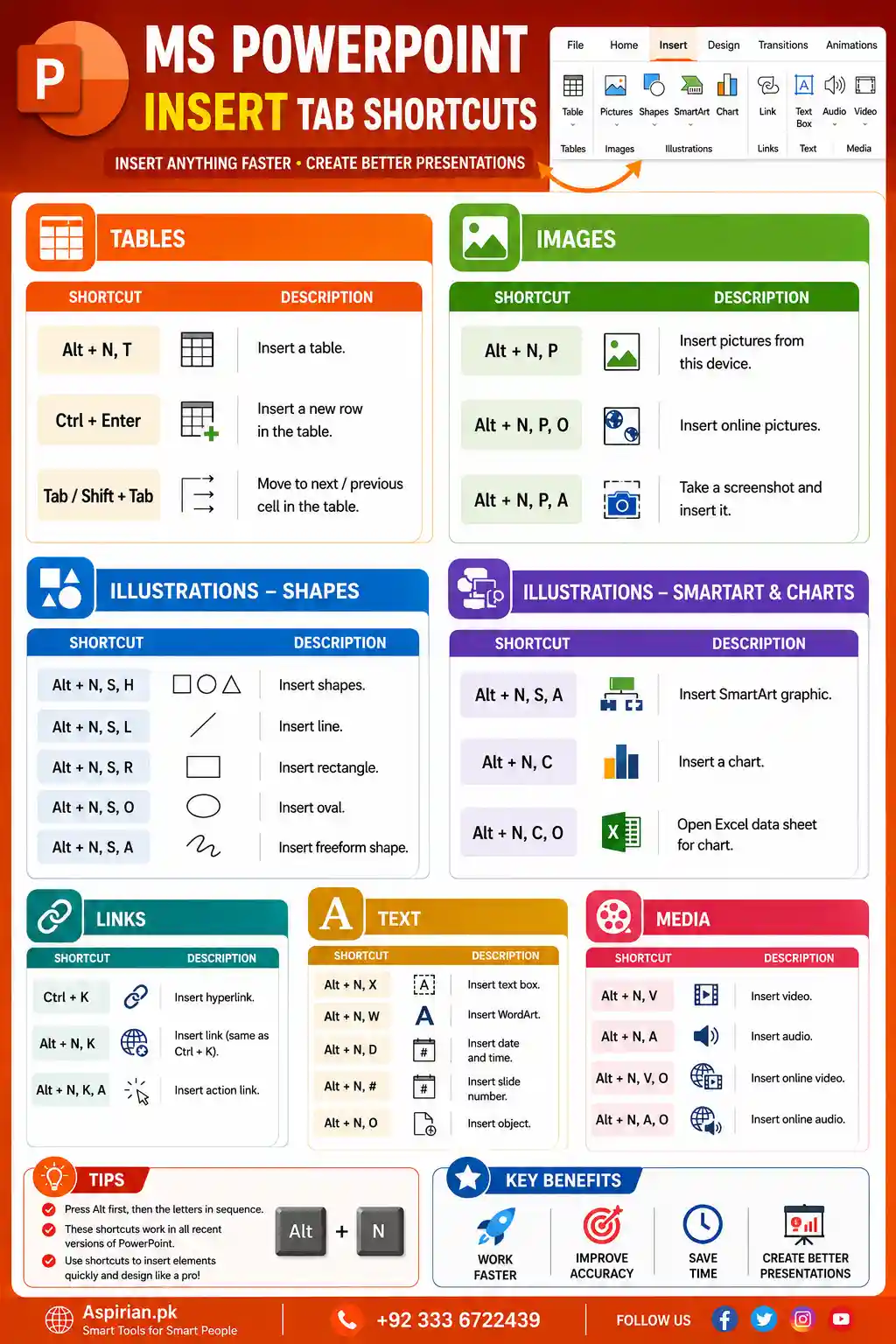
The Insert tab is used to add elements like tables, pictures, shapes, charts, links, text boxes, videos, and SmartArt. These shortcuts reduce your dependency on the mouse and allow you to design visually rich slides quickly.
1. Tables Section
Alt + N, T — Insert Table
Alt + JT — Table Tools
Ctrl + Enter (inside table) — Add new row
2. Illustrations Section
Alt + N, P — Insert Pictures
Alt + N, S, H — Insert Shapes
Alt + N, S, A — Insert SmartArt
Alt + N, C — Insert Chart
3. Links Section
Ctrl + K — Insert Hyperlink
Alt + N , K — Link Options
4. Text Section
Alt + N , X — Insert Text Box
Alt + N , W — WordArt
Insert + F7 — Open Thesaurus
5. Media Section
Alt + N , V — Insert Video
Alt + N , A — Insert Audio
Key Features of Insert Tab Shortcuts
The Insert tab enables users to enrich their slides with tables, charts, SmartArt, media files, links, and various graphical objects. These shortcuts allow fast and creative slide building without interrupting your flow. With quick insertion tools, you build professional-looking slides much faster.
Design Tab Shortcuts
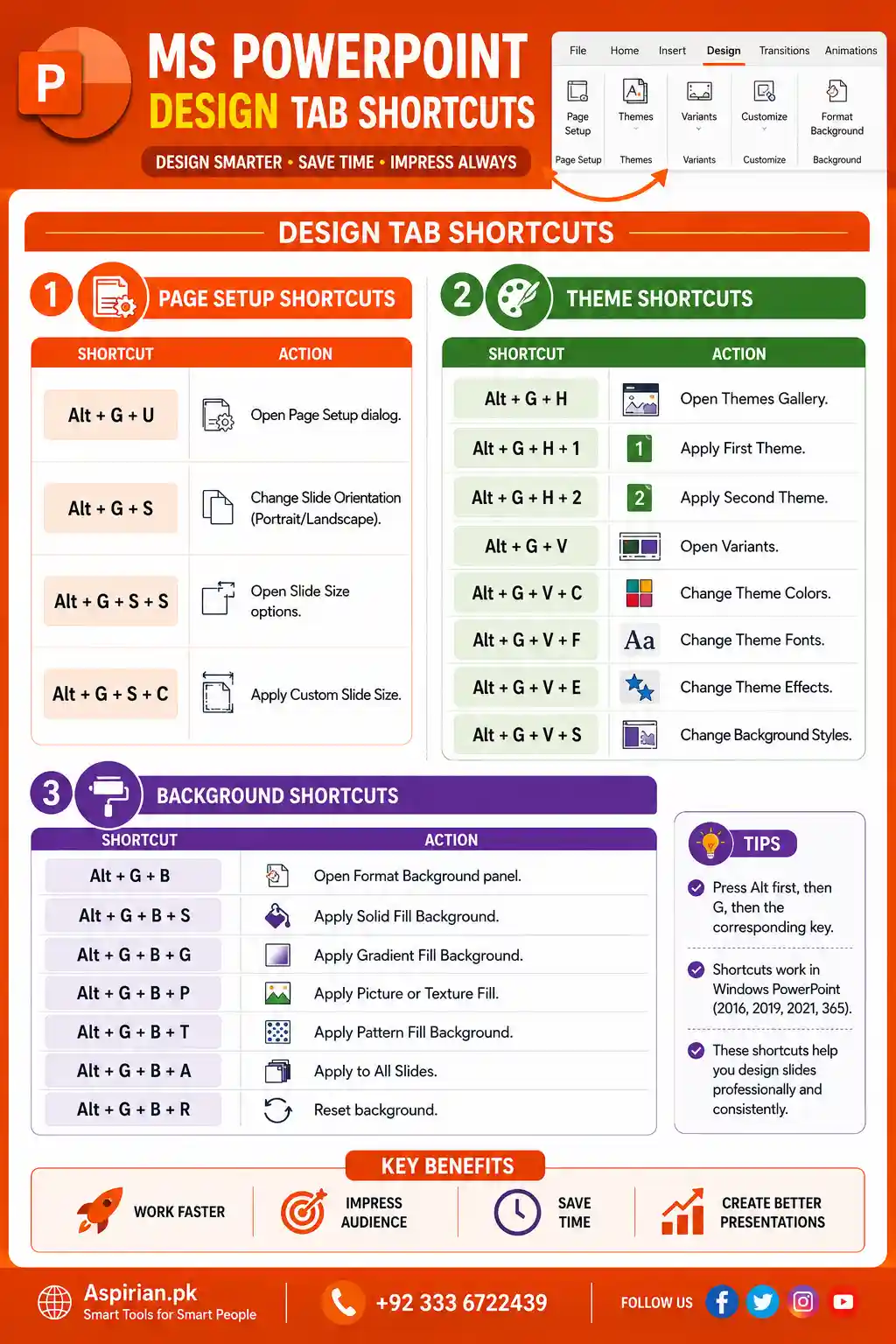
The Design Tab in Microsoft PowerPoint is where your presentation truly comes to life. It controls the overall visual identity, styling, and brand consistency of your slides. Whether you’re a student preparing assignments, a teacher designing lectures, or a professional crafting corporate presentations, the Design Tab shortcuts help you apply polished themes, adjust slide variants, modify backgrounds, and control layouts — all within seconds.
1. Page Setup Shortcuts
Alt → G → U Open Page Setup dialog
Alt → G → S Change Slide Orientation (Portrait/Landscape)
Alt → G → S → S Open Slide Size options
Alt → G → S → C Apply Custom Slide Size
2. Theme Shortcuts
Alt → G → H Open Themes Gallery
Alt → G → H → 1 Apply First Theme
Alt → G → H → 2 Apply Second Theme
Alt → G → V Open Variants
Alt → G → V → C Change Theme Colors
Alt → G → V → F Change Theme Fonts
Alt → G → V → E Change Theme Effects
Alt → G → V → S Change Background Styles
3. Background Shortcuts
Alt → G → B Open Format Background panel
Alt → G → B → S Apply Solid Fill Background
Alt → G → B → G Apply Gradient Fill Background
Alt → G → B → P Apply Picture/Texture Fill
Alt → G → B → T Apply Pattern Fill
Alt → G → B → A Apply to All Slides
Alt → G → B → R Reset background
Key Features of Design Tab Shortcuts
The Design Tab shortcuts in MS PowerPoint give you instant control over the overall look and feel of your presentation. Whether you’re adjusting page setup, applying themes, or customizing slide backgrounds, these shortcuts help you format slides quickly and professionally. Instead of manually navigating through multiple menus, you can instantly switch themes, apply color styles, or modify slide dimensions. These shortcuts ensure a polished, consistent design across all slides—saving time, improving visual quality, and making your presentations look more engaging and professional with minimal effort.
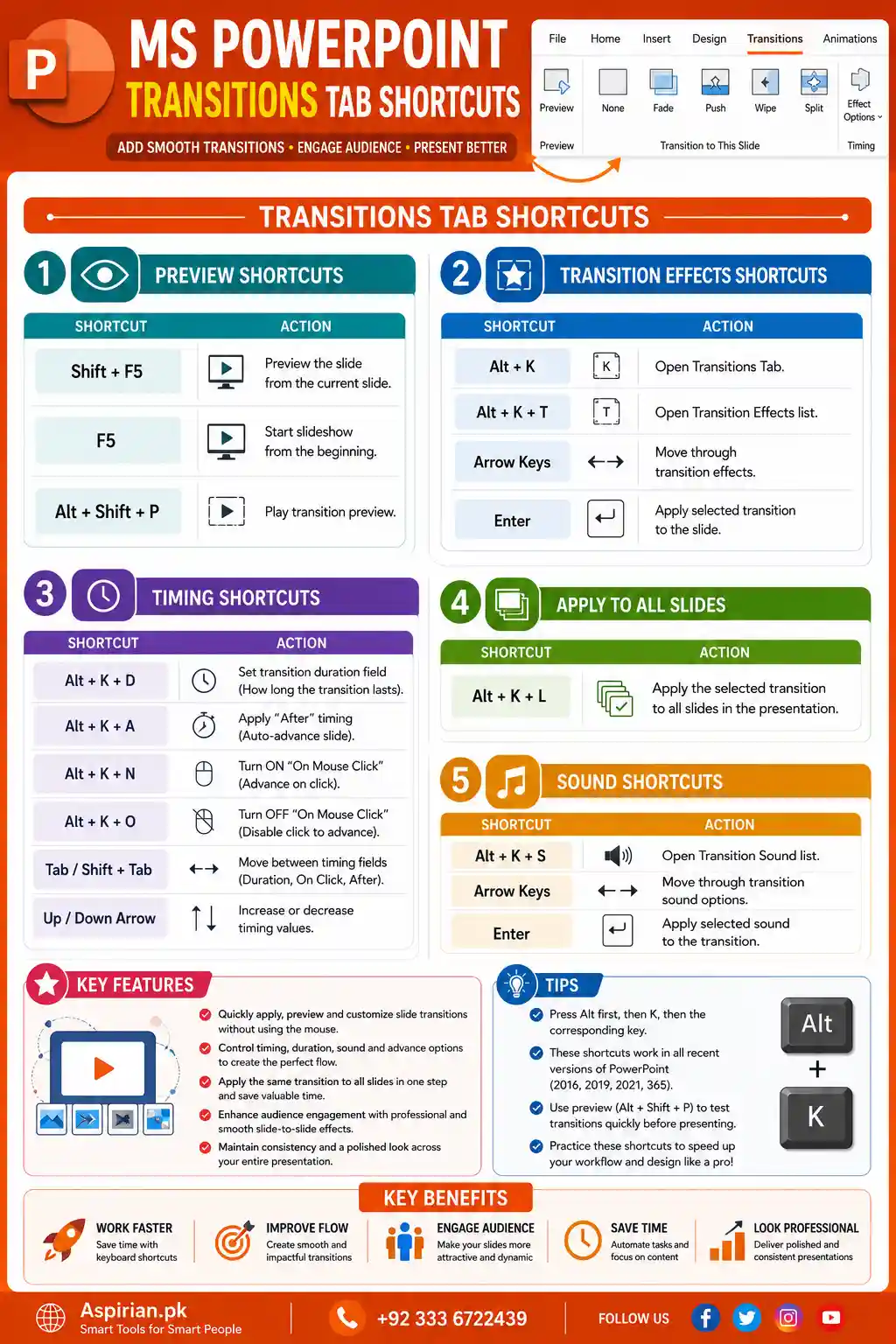
Transitions Tab Shortcuts
The Transitions Tab shortcuts allow you to instantly control the visual flow of your presentation. These shortcuts make it easy to preview effects, apply transitions to selected slides, adjust timing, or apply transitions to every slide at once—all without touching the mouse. They speed up your workflow, especially when designing large presentations or testing multiple animation styles. With quick access to preview tools, effect options, and timing settings, you can enhance slide navigation, improve audience engagement, and maintain a consistent, polished visual experience effortlessly.
1. Preview Shortcuts
Shift + F5 Preview the slide from the current slide
F5 Start slideshow from the beginning
Alt + Shift + P Play transition preview
2. Transition Effects Shortcuts
(Note: PowerPoint has no direct single-key shortcuts for specific named transitions, but these shortcuts control selection and cycling)
Alt + K Open Transition Tab
Alt + K + T Open Transition Effects list
Arrow Keys Move through transition effects
Enter Apply selected transition
3. Sound Shortcuts
Alt + K + S Open Transition Sound list
Arrow Keys Move through transition sound options
Enter Apply selected sound
4. Timing Shortcuts
Alt + K + D Set transition duration field
Alt + K + A Apply “After” timing (Auto-advance slide)
Alt + K + N Turn ON “On Mouse Click”
Alt + K + O Turn OFF “On Mouse Click”
Tab / Shift + Tab Move between timing fields
Up/Down Arrow Keys Increase/decrease timing values
5. Apply To All Slides Shortcuts
Alt + K + L Apply selected transition to all slides
Key Features of Transitions Tab Shortcuts
The Transitions Tab shortcuts allow you to instantly control the visual flow of your presentation. These shortcuts make it easy to preview effects, apply transitions to selected slides, adjust timing, or apply transitions to every slide at once—all without touching the mouse. They speed up your workflow, especially when designing large presentations or testing multiple animation styles. With quick access to preview tools, effect options, and timing settings, you can enhance slide navigation, improve audience engagement, and maintain a consistent, polished visual experience effortlessly.
Animations Tab Shortcuts
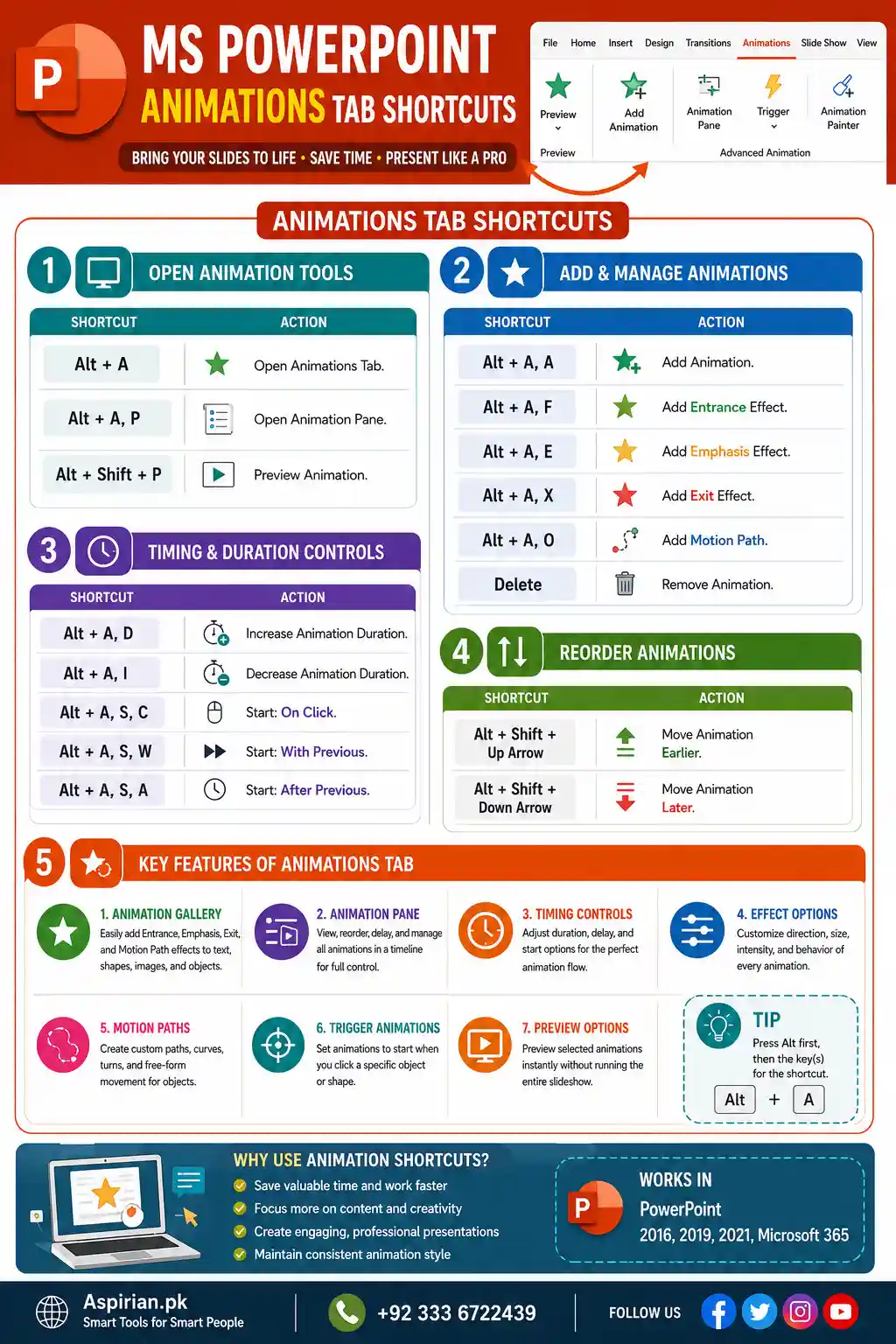
The Animations Tab in Microsoft PowerPoint lets you add motion effects to text, shapes, images, and objects. These shortcuts help you quickly open the animations panel, apply effects, adjust durations, reorder animations, and fine-tune timing — all without clicking through menus. Using these shortcuts dramatically speeds up your slide-design workflow and ensures smoother, more professional presentations.
1. Animation Pane Shortcuts
Alt + A, P Animation Pane open karein
Alt + Shift + Up Arrow Animation ko list me upar move karein
Alt + Shift + Down Arrow Animation ko list me neeche move karein
Delete Selected animation delete karein
2. Add Animation Shortcuts
Alt + A, A Add Animation menu open karein
Alt + A, E Entrance Effects gallery open karein
Alt + A, X Exit Effects gallery open karein
Alt + A, M Motion Path Effects gallery open karein
3. Effect Options Shortcuts
Alt + A, T Effect Options menu open karein
Ctrl + Shift + Right Arrow Animation direction forward set karein
Ctrl + Shift + Left Arrow Animation direction backward set karein
4. Timing Shortcuts
Alt + A, T, S Start (On Click / With Previous / After Previous) set karein
Alt + A, T, D Duration adjust karein
Alt + A, T, E Delay timing adjust karein
Key Features of Animations Tab Shortcuts
1. Animation Gallery
Quickly add Entrance, Emphasis, Exit, and Motion Path effects for dynamic movement.
2. Animation Pane
Full control to reorder, delay, or customize animations in a timeline-style panel.
3. Timing Controls
Set duration, delay, and start behavior for precise animation flow.
4. Effect Options
Customize direction, intensity, and behavior of every animation.
5. Motion Paths
Create custom paths, curves, turns, or free-form movement.
6. Trigger Animations
Set animations to play with specific clicks or objects, great for interactive slides.
7. Preview Options
Instantly preview your animations without running the whole slideshow.
Slide Show Tab Shortcuts
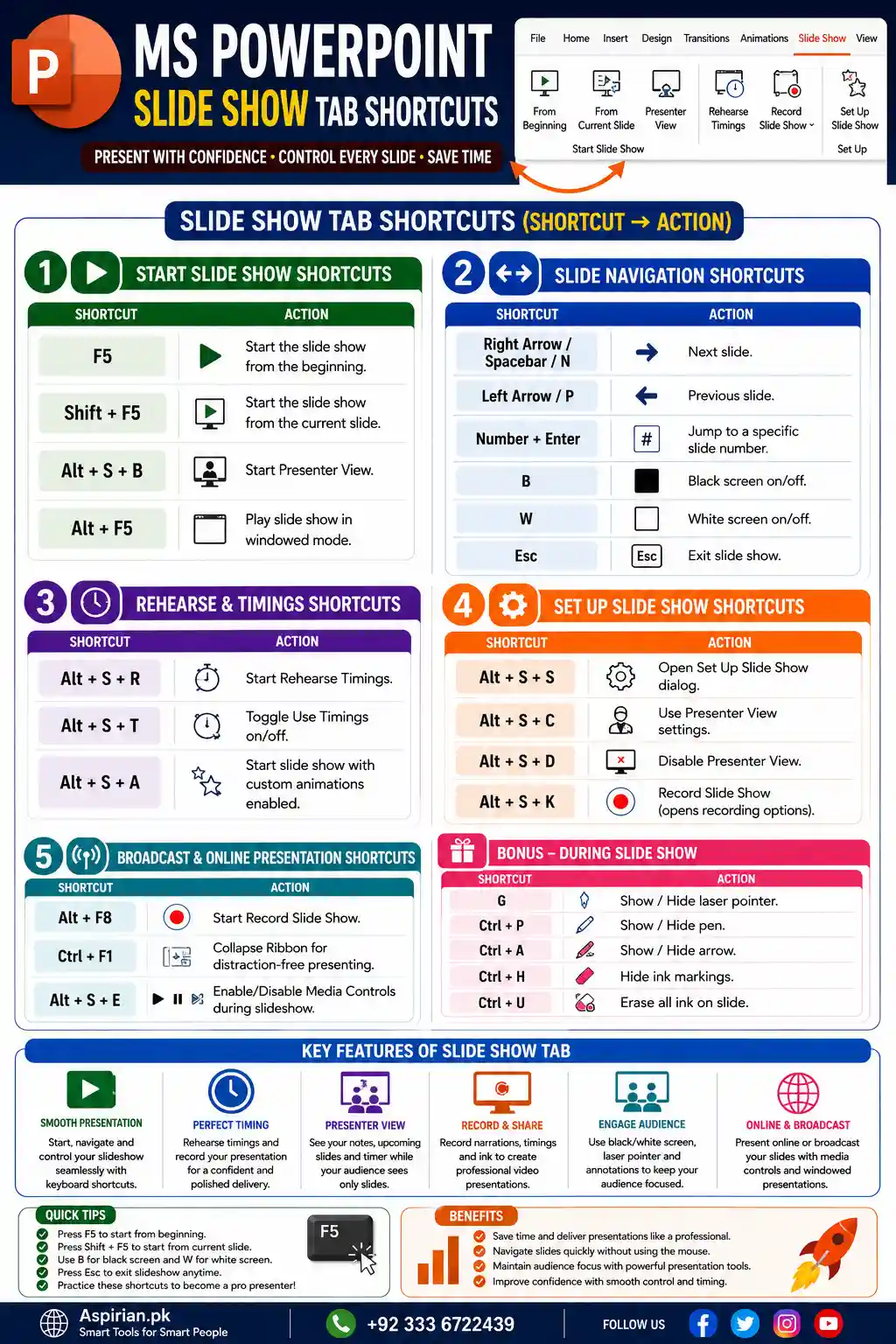
The Slide Show tab in MS PowerPoint controls everything related to presentations, timings, rehearsals, and audience view settings. Whether you are delivering a lecture, business pitch, or classroom presentation, these shortcuts help you start, manage, navigate, and control your slide show without touching the mouse.
Using keyboard shortcuts makes your presenting experience smoother, more professional, and distraction-free. Below are all important categories and their shortcut keys in the correct Shortcut → Action format.
1. Start Slide Show Shortcuts
F5 Start the slide show from the beginning
Shift + F5 Start the slide show from the current slide
Alt + S + B Start Presenter View
Alt + F5 Play slide show in windowed mode
2. Slide Navigation Shortcuts
Right Arrow / Spacebar / N Next slide
Left Arrow / P Previous slide
Number + Enter Jump to a specific slide number
B Black screen on/off
W White screen on/off
Esc Exit slide show
3. Rehearse & Timings Shortcuts
Alt + S + R Start Rehearse Timings
Alt + S + T Toggle Use Timings on/off
Alt + S + A Start slide show with custom animations enabled
4. Set Up Slide Show Shortcuts
Alt + S + S Open Set Up Slide Show dialog
Alt + S + C Use Presenter View settings
Alt + S + D Disable Presenter View
Alt + S + K Record Slide Show (opens recording options)
5. Broadcast & Online Presentation Shortcuts
Alt + F8 Start Record Slide Show
Ctrl + F1 Collapse Ribbon for distraction-free presenting
Alt + S + E Enable/Disable Media Controls during slideshow
Key Features of Slide Show Tab Shortcuts
- Professional Delivery: Start and control your entire presentation smoothly using only the keyboard.
- Perfect Timing: Rehearse timing to make your presentation flow naturally.
- Focus Tools: Hide slides with black/white screen options to redirect audience focus.
- Presenter View: Use dual-screen mode for notes, timers, and slide preview.
- Recording Support: Record narration, laser points, and timings for video presentations.
- Quick Navigation: Instantly jump to any slide using slide numbers.
- Live Presenting Options: Supports broadcast, online presentation, and windowed slideshow modes.
Review Tab Shortcuts
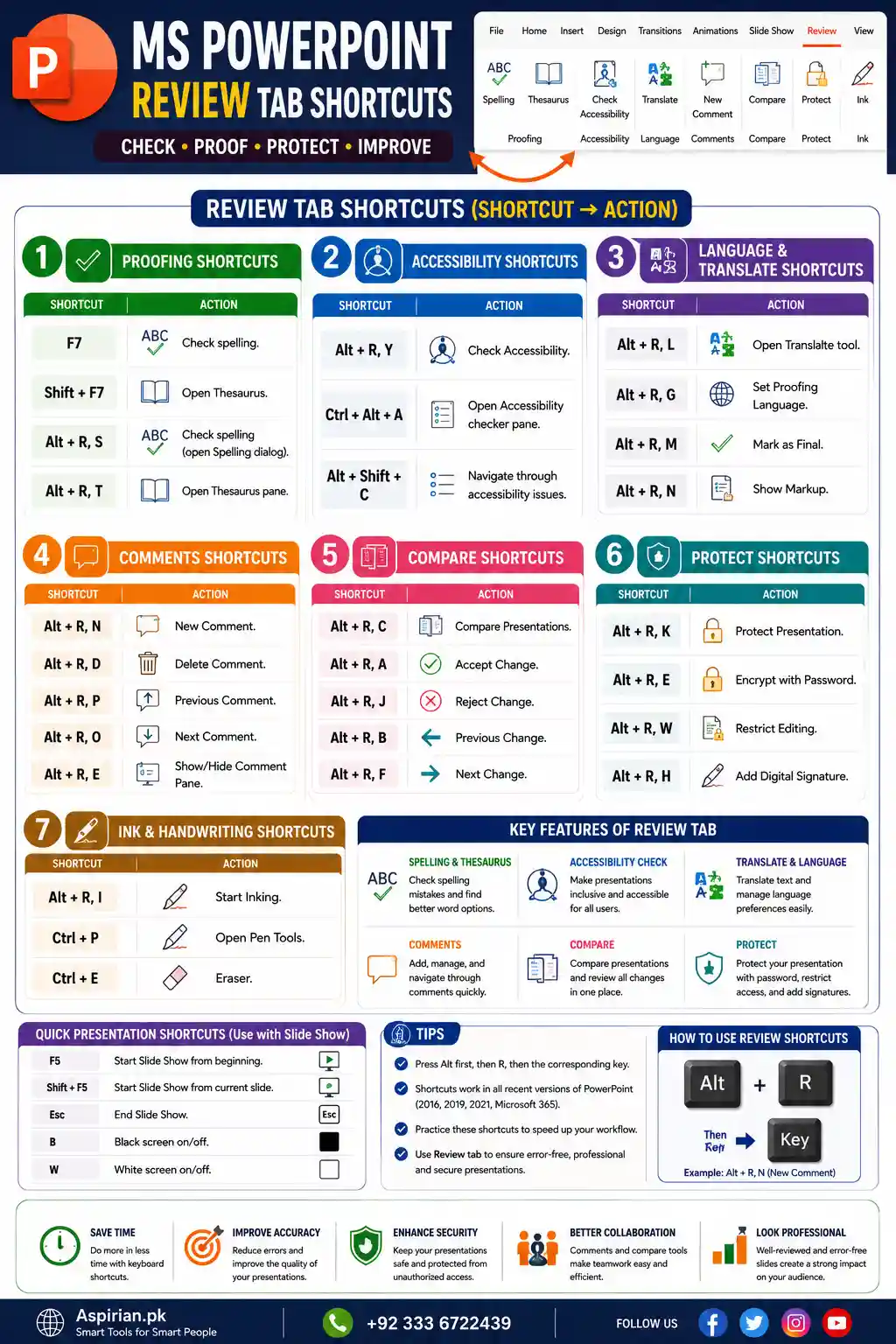
The Review tab in MS PowerPoint is dedicated to improving the accuracy, clarity, and professionalism of your presentation. Whether you’re refining grammar, adding comments for teamwork, comparing different versions of a file, or securing your presentation with a password, the Review tab provides all essential tools to finalize your work with confidence.
This tab is especially useful for teachers, students, office professionals, and teams who collaborate on presentations and need built-in proofreading and reviewing support. With PowerPoint’s keyboard shortcuts, you can perform all review actions faster, without repeatedly using the mouse – improving your overall workflow.
1. Proofing Tools
F7 Run Spelling & Grammar Check
Alt + R, S Open Thesaurus
Alt + R, L Access Language Options
Alt + R, U Translate Selected Text
Alt + R, T Start Accessibility Checker
2. Comments & Notes
Ctrl + Alt + M Add a New Comment
Alt + R, P Show/Hide Comments Panel
Alt + R, M, N Reply to a Comment
Alt + R, M, A Delete a Comment
Alt + R, M, V Navigate to Next Comment
Alt + R, M, B Navigate to Previous Comment
3. Compare & Combine
Alt + R, C Compare Two Presentations
Alt + R, M, A Accept Changes
Alt + R, M, J Reject Changes
4. Protect & Secure Presentation
Alt + F, I, P Protect Presentation Options (Encrypt, Restrict Editing)
Key Features of Review Tab Shortcuts
1. Complete Proofing Assistance
From spell check to grammar suggestions and thesaurus support, the Review tab ensures a polished and professional presentation.
2. Perfect for Collaboration
With tools to add, manage, and navigate comments, the tab is ideal for teamwork, feedback loops, and shared editing.
3. Language & Translation Tools
Easily translate text, switch editing languages, and manage multilingual presentations with one click.
4. Version Management
Compare different versions of a PowerPoint file, track changes, and decide which edits to accept or reject.
5. Secure Your Presentation
Encrypt your file with a password or apply restrictions to prevent unwanted editing—ideal for confidential or official documents.
View Tab Shortcuts
The View tab in MS PowerPoint helps you control how your presentation appears on your screen while editing, reviewing, or arranging slides. This tab is essential for switching between different workspace views such as Normal, Slide Sorter, Notes Page, and Reading View. It also includes tools like Zoom, Guides, Rulers, Gridlines, and Master Views, which help in perfect alignment, design control, and layout accuracy.
Whether you are designing slides, organizing content, or preparing for a slideshow, the View tab gives you full command over the presentation workspace, making your editing experience smoother and more productive.
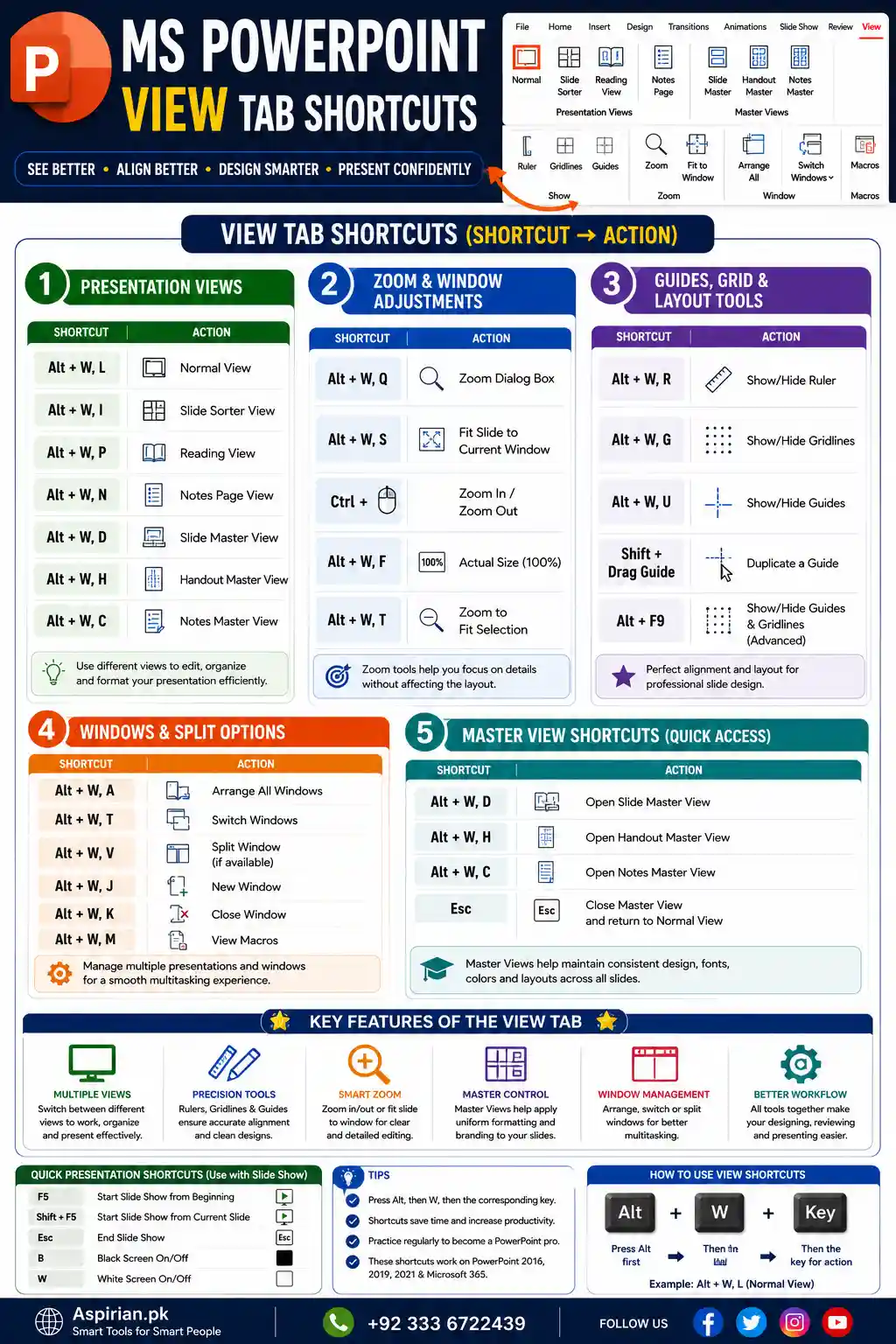
1. Presentation Views
Alt + W, L Normal View
Alt + W, I Slide Sorter View
Alt + W, P Reading View
Alt + W, N Notes Page View
Alt + W, D Slide Master View
Alt + W, H Handout Master View
Alt + W, C Notes Master View
2. Zoom & Window Adjustments
Alt + W, Q Zoom Dialog Box
Alt + W, S Fit Slide to Current Window
Ctrl + Mouse Wheel Zoom In / Zoom Out
3. Guides, Grid & Layout Tools
Alt + W, R Show/Hide Ruler
Alt + W, G Show/Hide Gridlines
Alt + W, U Show/Hide Guides
Shift + Drag Guide Duplicate a Guide
Alt + F9 Show/Hide Guides & Gridlines (Advanced)
4. Windows & Split Options
Alt + W, A Arrange All Windows
Alt + W, T Switch Windows
Alt + W, M View Macros
Alt + W, V Split Window (if available)
Key Features of View Tab Shortcuts
1. Full Control Over Presentation Views
Switch instantly between Normal, Notes, Slide Sorter, Master Views, and Reading mode depending on your workflow.
2. Professional Alignment Tools
Rulers, Gridlines, and Guides make it easy to align shapes, images, and objects perfectly.
3. Efficient Slide Organization
Slide Sorter and Notes Page Views help you structure a presentation with clarity and speed.
4. Master Views for Uniform Formatting
Slide Master, Handout Master, and Notes Master help apply consistent design across all slides.
5. Precision Zooming
Built-in zoom tools enhance detail editing without affecting presentation layout.
6. Window Management for Multitasking
Switch between presentations, arrange windows, or open multiple files side-by-side with ease.
More General PowerPoint Shortcuts
Slide Navigation
Ctrl + Up/Down — Move Slide
Ctrl + Shift + Up/Down — Send Slide to Top/Bottom
Drawing & Shape Tools
Ctrl + G — Group
Ctrl + Shift + G — Ungroup
Ctrl + Shift + C / V — Copy/Paste Formatting
Shift + Arrow Keys — Nudge Object Faster
File Shortcuts
Ctrl + S — Save
Ctrl + Shift + S — Save As
Ctrl + O — Open
Ctrl + N — New File
How to Learn PowerPoint Shortcuts Fast
- Start with the Home tab (most daily use).
- Learn Insert, Design, and Animations gradually.
- Practice shortcut-only editing for 10 minutes/day.
- Practice slide navigation using only the keyboard.
- Keep a printed cheat sheet for revision.
Final Tips for Students
- Learn 5 shortcuts daily
- Practice on your real assignments
- Use shortcuts for formatting headings
- Save your work frequently
- Keep your files organized
These shortcuts will make your workflow faster, cleaner, and more professional.
Job Portal for Students & Freelancers
Looking for jobs or internships?
✔ Latest Jobs in Pakistan
✔ Freelancing Opportunities
✔ Remote Jobs
✔ Student Internships
📌 Aspirian.pk job portal helps you find online earning opportunities, career growth, and latest job updates.
Looking for a Better Job? Start Your Career Journey Today!
Find the latest fresh jobs, internships, online earning opportunities, and skill-based career options — all in one place.
Explore Free Online Tools on Aspirian.pk
Popular Free Online AI Tools You May Like
- Roman Urdu to English – A simple translator for basic sentences.
- Number to Words – Convert figures into words
- GPA & Grade Calculator – Calculate board percentages and grades.
- Age Calculator – Find your exact age
- MS Word to PDF – Word to PDF Converter
- Lorem Ipsum Generator – Professional dummy text tool.
Explore all tools here:
Free Online Tools for Students – Aspirian.pk

Boost Your Tech Career
Want to learn programming and freelancing skills?
✔ Python Programming
✔ Web Development
✔ Digital Markting
✔ WordPress Mastery
✔ AI Automation
✔ Freelancing Skills
✔ AI Tools Training
Start your journey towards a successful tech career today.

Frequently Asked Questions (FAQs)
Q1: Are these shortcuts same for Windows & Mac?
Most are same, but some Mac keys use Command ⌘ instead of Ctrl.
Q2: How can I remember all shortcuts?
Practice tab-wise and use them daily.
Q3: Do shortcuts improve presentation design?
Yes — they save time and improve layout precision.