
Microsoft Excel is one of the most powerful tools used by students, teachers, accountants, data analysts, and office professionals worldwide. Whether you’re entering data, analyzing numbers, or preparing assignments, knowing MS Excel keyboard shortcuts can dramatically improve your speed and accuracy. Instead of relying on the mouse for every task, shortcuts help you work smarter and complete tasks in seconds.
This complete guide covers all MS Excel keyboard shortcuts tab-by-tab, including Home, Insert, Data, Formulas, View, Review, and more. Each section includes clean tables, key features, and easy explanations so students can master Excel faster. With this guide, you’ll save time, boost productivity, and work like a true Excel expert.
Table of Contents
What You Will Learn From This Guide
In this comprehensive MS Excel keyboard shortcuts guide, you will learn how to work faster, smarter, and more efficiently—whether you’re a beginner or an advanced user. This article breaks down every essential keyboard shortcut category, helping you understand exactly when and how to use them. You’ll explore shortcuts for formatting, data management, formulas, navigation, tables, charts, and workbook handling.
You will also learn how to reduce mouse dependency, automate repetitive tasks, and boost your overall productivity in MS Excel. Each section provides clear explanations and practical use-cases tailored for students, office workers, and professionals who rely on Excel every day. By the end, you’ll be able to perform tasks that used to take minutes in just a few seconds—making your workflow faster and your work more accurate.
Why Excel Shortcuts Matter
MS Excel keyboard shortcuts are more than just time-savers — they completely transform the way you work. Instead of clicking through menus and tabs repeatedly, you can perform actions instantly with simple key combinations. This boosts your speed, accuracy, and confidence, especially when working with large datasets or tight deadlines.
Using shortcuts helps you focus more on your work and less on searching for options. Whether you’re a student preparing assignments, an accountant managing sheets, or a data analyst organizing reports, shortcuts make everything smoother and more professional.
- Benefits of Using Excel Shortcuts
- Work 2×–5× Faster — Perform routine tasks instantly without touching the mouse.
- Reduce Mistakes — Avoid wrong selections caused by manual clicking.
- Improve Productivity — Finish assignments, reports, and projects much quicker.
- Professional-level Efficiency — Shortcut users look more skilled and confident in office or academic environments.
- Better Workflow for Large Data — Navigate, format, filter, and clean data with minimal effort.
- Great for Exams & Practical Tests — Many computer exams reward speed and accuracy.
- Perfect for Both Beginners & Pros — Easy to learn and immediately useful.
If you want to save time and work smarter in Excel, shortcuts are the fastest way to level up your skills.
Complete MS Excel Keyboard Shortcuts
Mastering MS Excel becomes much easier when you understand the shortcuts available inside each tab. Every Excel tab—such as Home, Insert, Page Layout, Formulas, Data, Review, View, and File—contains dozens of built-in commands that you can access instantly through the keyboard. Instead of searching through menus, you can perform formatting, data entry, calculations, navigation, reviewing, and file operations with simple key combinations.
This section gives you a tab-by-tab breakdown of all essential MS Excel keyboard shortcuts, helping you learn Excel in a structured and practical way. Whether you’re managing assignments, analyzing data, creating reports, or preparing for exams, these shortcuts will make your workflow much faster and more professional.
After this overview, we will go through each Excel tab one by one and list every useful shortcut with a clean, organized format—perfect for students, teachers, office users, and data professionals.
Home Tab Shortcuts
The Home tab contains the most commonly used Excel commands — formatting, alignment, clipboard actions, editing tools, number formatting, and more. These shortcuts help you work dramatically faster without touching the mouse.
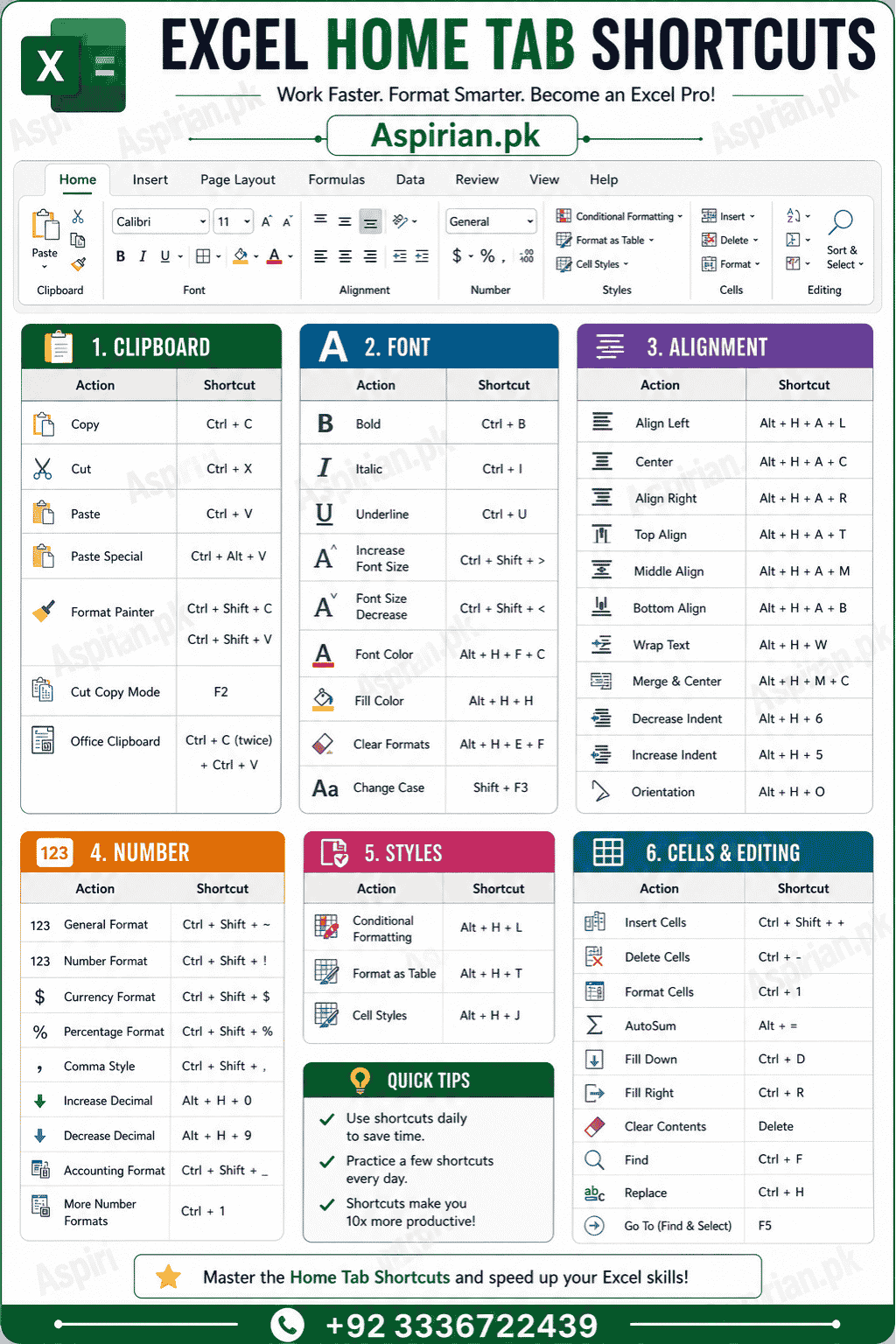
1. Clipboard Shortcuts (Copy, Paste, Cut, Format Painter)
Copy Ctrl + C
Cut Ctrl + X
Paste Ctrl + V
Paste Special Ctrl + Alt + V
Open Clipboard Ctrl + C (twice)
Format Painter Ctrl + Shift + C (Copy Format)
Apply Copied Format Ctrl + Shift + V
2. Font Formatting Shortcuts
Bold Ctrl + B
Italic Ctrl + I
Underline Ctrl + U
Strikethrough Ctrl + 5
Increase Font Size Ctrl + Shift + >
Decrease Font Size Ctrl + Shift + <
Open Format Cells (Font Tab) Ctrl + 1
3. Cell Alignment Shortcuts
Align Left Alt + H + A + L
Align Center Alt + H + A + C
Align Right Alt + H + A + R
Top Align Alt + H + A + T
Middle Align Alt + H + A + M
Bottom Align Alt + H + A + B
Wrap Text Alt + H + W
Merge & Center Alt + H + M + C
Merge Across Alt + H + M + A
Unmerge Cells Alt + H + M + U
4. Number Formatting Shortcuts
General Format Ctrl + Shift + ~
Number Format Ctrl + Shift + !
Time Format Ctrl + Shift + @
Date Format Ctrl + Shift + #
Currency Format Ctrl + Shift + $
Percentage Format Ctrl + Shift + %
Scientific Format Ctrl + Shift + ^
Increase Decimal Alt + H + 0
Decrease Decimal Alt + H + 9
5. Rows & Columns (Insert / Delete / Format)
Insert Row Ctrl + Shift + +
Insert Column Ctrl + Shift + + (on column selection)
Delete Row Ctrl + –
Delete Column Ctrl + –
Insert Cells Ctrl + Shift + +
Delete Cells Ctrl + –
Autofit Column Width Alt + H + O + I
Autofit Row Height Alt + H + O + A
Column Width Dialog Alt + H + O + W
Row Height Dialog Alt + H + O + H
6. Editing & Data Tools
Action Shortcut
Fill Down Ctrl + D
Fill Right Ctrl + R
Clear All Alt + H + E + A
Clear Contents Delete
Clear Formats Alt + H + E + F
Clear Comments Alt + H + E + M
Sort A → Z Alt + H + S + S
Sort Z → A Alt + H + S + O
Filter Toggle Ctrl + Shift + L
Add Filter Alt + H + S + F
Find Ctrl + F
Replace Ctrl + H
Key Features of Home Tab Shortcuts
The Home Tab shortcuts are designed to speed up the tasks students and professionals use every day — formatting text, aligning content, adjusting numbers, and managing rows and columns. These shortcuts eliminate repetitive mouse clicks and allow you to format entire assignments or reports in seconds. With quick access to alignment, font styling, clipboard actions, and editing tools, the Home Tab becomes the foundation for fast, efficient Excel work. Mastering these shortcuts can dramatically improve your productivity and document quality.
Insert Tab Shortcuts
The Insert tab in Excel is all about adding new elements to your sheet—tables, charts, images, shapes, symbols, and more. These shortcuts help you quickly insert data-visualization tools and objects without navigating the ribbon manually.
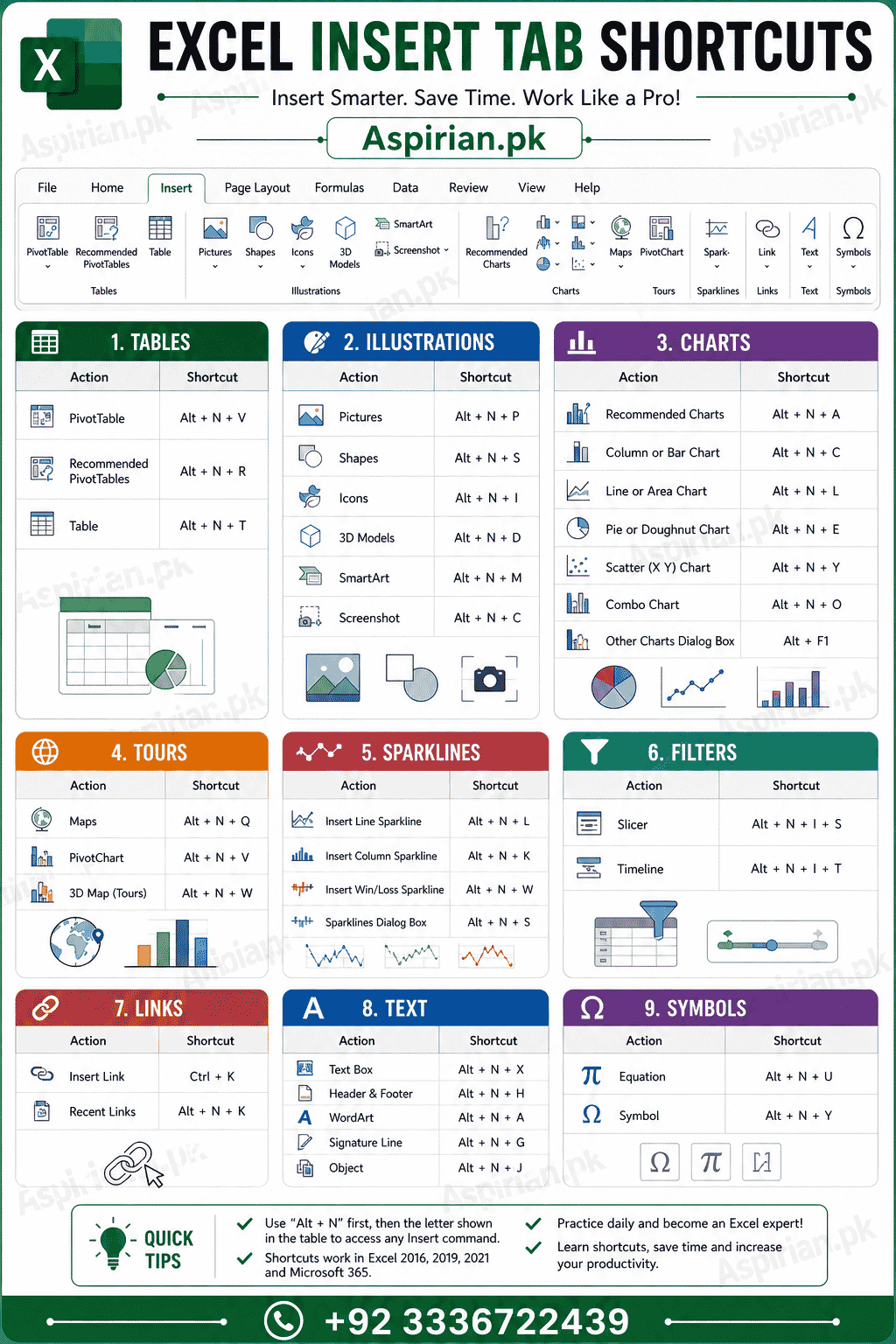
- Tables (Clipboard Style)
Insert Table Ctrl + T or Ctrl + L
Insert PivotTable Alt + N + V
Insert PivotChart Alt + N + P
Insert Recommended PivotTables Alt + N + S + T
Insert Recommended Charts Alt + N + R - Illustrations
Insert Pictures from File Alt + N + P
Insert Online Pictures Alt + N + P + O
Insert Shapes Menu Alt + N + S + H
Insert Icons Alt + N + N
Insert 3D Models Alt + N + M + D
Insert SmartArt Alt + N + M
Insert Screenshot Alt + N + S + C - Charts
Insert Chart (default type) Alt + F1
Insert Chart in New Sheet F11
Insert Recommended Charts Alt + N + R
Insert Column Chart Alt + N + C
Insert Line Chart Alt + N + L
Insert Pie Chart Alt + N + Q
Insert Bar Chart Alt + N + B
Insert Area Chart Alt + N + A
Insert Combo Chart Alt + N + M + C - Sparklines
Insert Line Sparkline Alt + N + S + L
Insert Column Sparkline Alt + N + S + C
Insert Win/Loss Sparkline Alt + N + S + W - Filter (Insert Tab → Filter Group)
(Note: Filter group = Slicers, Timeline, etc.)
Insert Slicer Alt + N + S + L
Insert Timeline Alt + N + L
- Links
Insert Hyperlink Ctrl + K
Insert Link Menu Alt + N + I - Text
Insert Text Box Alt + N + X
Insert Header & Footer Alt + N + H
Insert WordArt Alt + N + W
Insert Object Alt + N + J
Insert Signature Line Alt + N + S + L - Symbols
Insert Symbol Alt + N + U
Insert Equation Alt + N + E
Key Features of Insert Tab Shortcuts
Insert Tab shortcuts help you quickly add professional elements to your Excel sheets — from tables and charts to images, links, and symbols. These shortcuts remove the need to search through menus, letting you insert visuals, data models, and text objects within seconds. Whether you’re creating reports, dashboards, or presentations, Insert Tab shortcuts make your workflow smoother and more creative. By mastering them, you can build structured, visually rich spreadsheets with speed and precision.
Page Layout Tab
The Page Layout Tab in Excel helps you control how your worksheet looks when printed or presented. It includes tools for margins, page size, orientation, background, themes, scaling, and arranging sheet elements. These features are essential when preparing assignments, reports, financial statements, or printable documents. With Page Layout shortcuts, you can quickly format sheets without manually navigating menus—saving time and improving output quality.
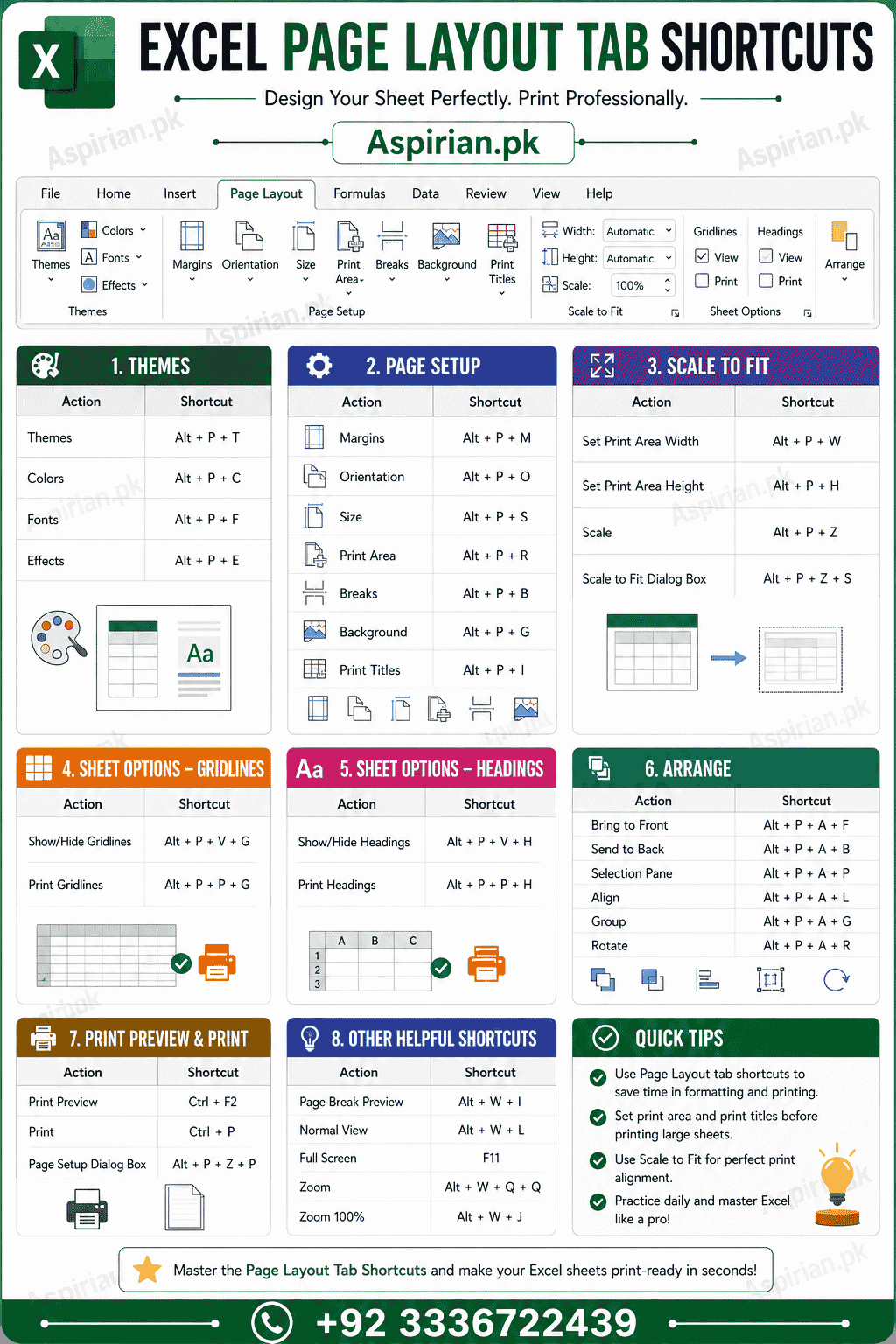
1. Themes Shortcuts
Open Themes Menu Alt + P + TH
Change Colors Alt + P + TC
Change Fonts Alt + P + TF
Change Effects Alt + P + TE
2. Page Setup Shortcuts
Set Margins Alt + P + M
Orientation (Portrait/Landscape) Alt + P + O
Select Page Size Alt + P + S
Open Print Area Alt + P + A
Set Print Area Alt + P + A + S
Clear Print Area Alt + P + A + C
Breaks (Insert Page Break) Alt + P + B + I
Reset Page Breaks Alt + P + B + R
Background (Add Image) Alt + P + B
Print Titles Alt + P + I
3. Scale to Fit Shortcuts
Adjust Width Alt + P + W
Adjust Height Alt + P + H
Set Scaling Percentage Alt + P + S
4. Sheet Options Shortcuts
Toggle Gridlines View Alt + W + VG
Toggle Gridlines Print Alt + P + SG
Toggle Headings View Alt + W + VH
Toggle Headings Print Alt + P + SH
5. Arrange Shortcuts
Bring to Front Alt + P + R + F
Send to Back Alt + P + R + B
Selection Pane Alt + P + R + P
Align Objects Alt + P + R + A
Group Objects Alt + P + R + G
Ungroup Objects Alt + P + R + U
Rotate Objects Alt + P + R + T
Key Features of Page Layout Tab Shortcuts
The Page Layout Tab shortcuts help you create clean, well-structured, and print-ready spreadsheets without wasting time searching through menus. Whether you’re adjusting margins, changing orientation, inserting breaks, or preparing a report layout, these shortcuts ensure everything looks professional. Students preparing assignments and professionals working on reports benefit from fast scaling, clean formatting, and precise layout control. Mastering these shortcuts makes your documents visually consistent and ready for printing or submission.
Formulas Tab
The Formulas Tab in Excel is the command center for all calculation-related tools. It gives you quick access to functions, formula auditing, named ranges, and calculation settings. Whether you’re solving math problems, analyzing data, or creating reports, this tab helps you insert formulas efficiently, trace errors, and control how Excel calculates results. With keyboard shortcuts, you can access functions faster, fix formula issues instantly, and work with large datasets without slowing down.
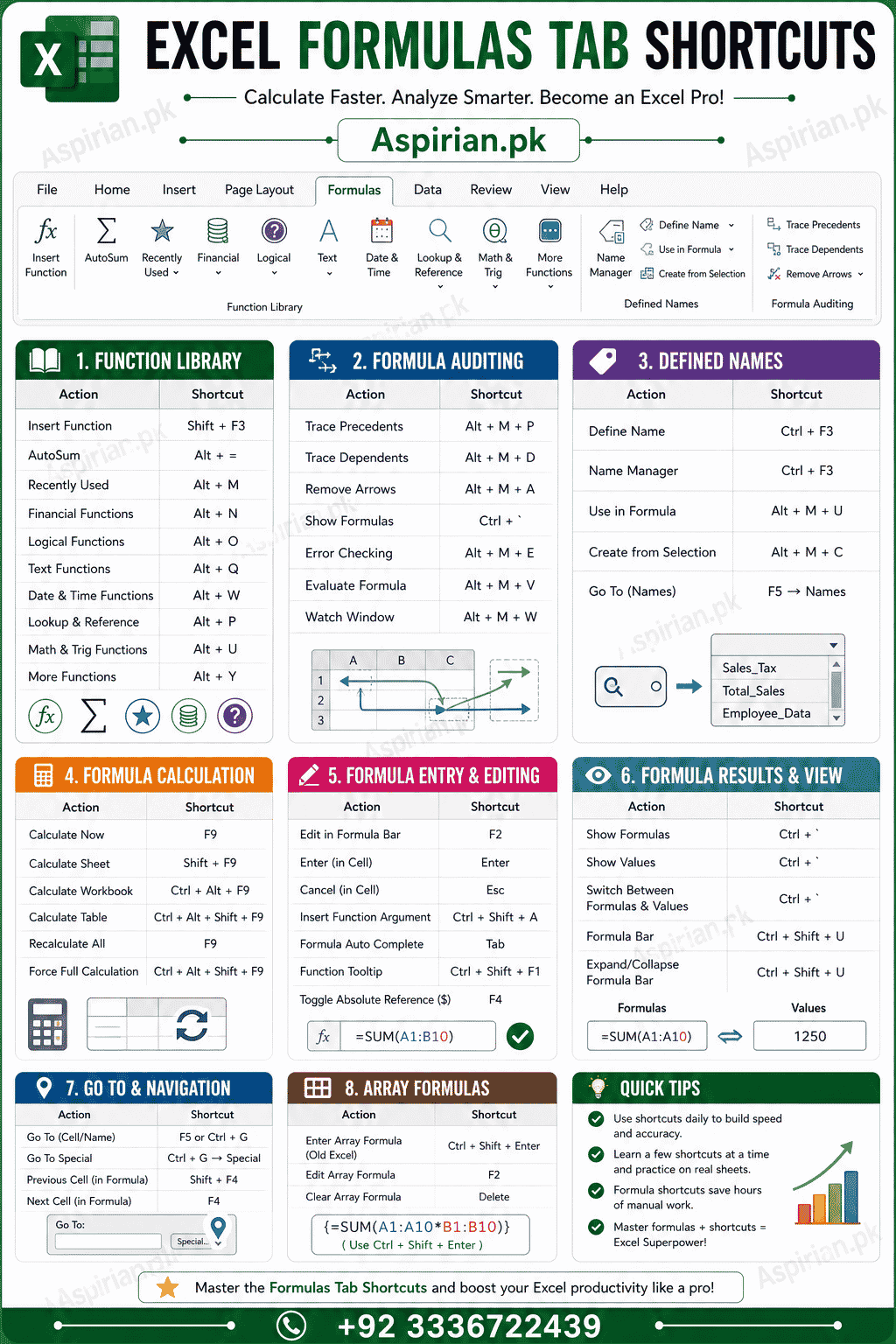
1. Function Library Shortcuts
Insert Function Dialog Shift + F3
AutoSum Alt + =
Insert Recently Used Functions Alt + M + R
Insert Financial Functions Alt + M + F
Insert Logical Functions Alt + M + L
Insert Text Functions Alt + M + T
Insert Date & Time Functions Alt + M + D
Insert Lookup & Reference Functions Alt + M + O
Insert Math & Trig Functions Alt + M + H
Insert More Functions Alt + M + U
2. Defined Names Shortcuts
Name Manager Ctrl + F3
Create Names from Selection Ctrl + Shift + F3
Define Name Alt + M + M + D
Use in Formula Alt + M + M + U
3. Formula Auditing Shortcuts
Trace Precedents Alt + M + P
Trace Dependents Alt + M + D
Remove Arrows Alt + M + A + A
Show Formulas Ctrl + `
Error Checking Alt + M + X
Evaluate Formula Alt + M + V
Watch Window Alt + M + W
4. Calculation Shortcuts
Calculate Now F9
Calculate Sheet Shift + F9
Toggle Automatic/Manual Calculation Alt + M + X + A
Open Calculation Options Alt + M + X
Refresh All Ctrl + Alt + F5
5. Additional Useful Formula Shortcuts
Insert/Start a Formula = (Equals Key)
Absolute Reference Toggle F4
Edit Active Cell F2
Display Function Arguments Ctrl + Shift + A
Complete Formula & Enter Ctrl + Enter
Array Formula (Legacy) Ctrl + Shift + Enter
Key Features of Formulas Tab Shortcuts
The Formulas Tab shortcuts empower you to work faster with calculations, data analysis, and function management. Instead of searching through menus, you can instantly insert functions, trace errors, manage named ranges, and toggle calculation modes with quick key commands. These shortcuts are extremely helpful for students working on math assignments, finance problems, and large spreadsheets. By mastering these actions, you gain full control over formulas, reduce errors, and improve your overall Excel productivity.
Data Tab Shortcuts
The Data Tab in Excel is where all major data-handling operations take place. Whether you are cleaning data, importing files, sorting, filtering, validating entries, or performing advanced analysis, everything happens here.
Students, accountants, data analysts, researchers, and office staff use this tab almost daily—making its shortcuts extremely valuable.
Mastering Data Tab shortcuts helps you work faster, clean datasets in seconds, and avoid manual repetitive steps that slow you down.
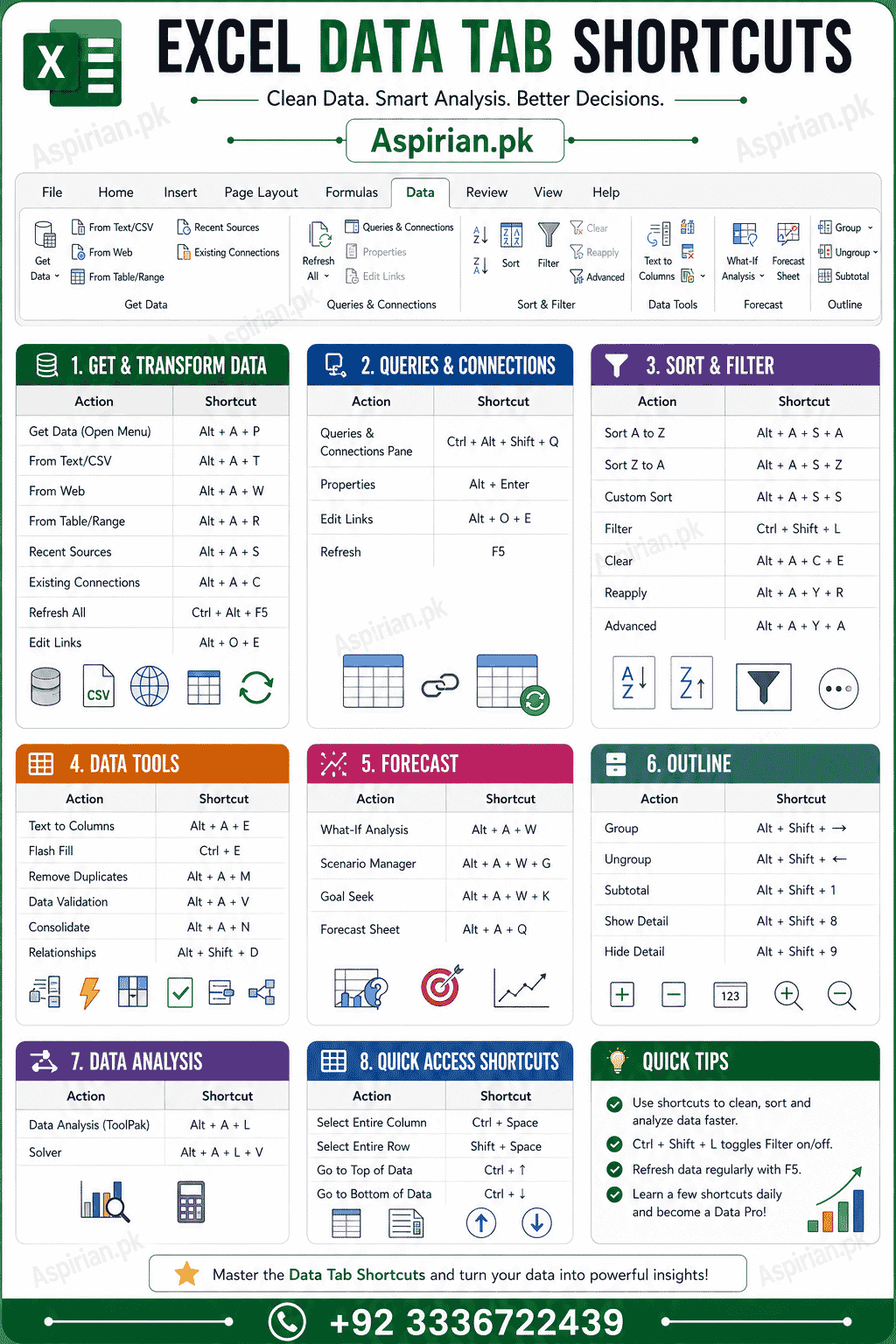
1. Get & Transform Data (Power Query) Shortcuts
Open Get Data Menu Alt + A + F
Launch Power Query Editor Alt + A + P
Refresh All Queries Ctrl + Alt + F5
Show Workbook Queries Pane Alt + A + P + Q
Load Data to Worksheet Enter (Inside Power Query)
Close & Load Ctrl + Q (Inside Power Query)
2. Sort & Filter Shortcuts
Sort A → Z Alt + A + S + A
Sort Z → A Alt + A + S + D
Clear Sort Alt + A + C
Apply Filter / Remove Filter Ctrl + Shift + L
Filter by Selected Cell’s Value Alt + Down Arrow → F
Open Filter Drop-Down Alt + Down Arrow
Reapply Filter Ctrl + Alt + L
3. Data Tools Shortcuts
Text to Columns Wizard Alt + A + E
Remove Duplicates Alt + A + M
Data Validation Alt + A + V + V
Circle Invalid Data Alt + A + V + C
Flash Fill Ctrl + E
Consolidate Alt + A + N
What-If Analysis Alt + A + W
4. Forecast Shortcuts
Forecast Sheet Alt + A + F + C
Define Forecast Options Alt + A + R
Data Table Alt + A + W + T
5. Connections & Links Shortcuts
Refresh All Data Connections Ctrl + Alt + F5
Refresh Selected Connection Alt + A + R + S
Edit Links Alt + A + K
Connections Window Alt + A + O
6. Outline Shortcuts (Grouping)
Group Alt + Shift + Right Arrow
Ungroup Alt + Shift + Left Arrow
Toggle Outline Level 1 Alt + A + H + 1
Toggle Outline Level 2 Alt + A + H + 2
Toggle Outline Level 3 Alt + A + H + 3
Show Detail Ctrl + 8
Hide Detail Ctrl + 9
Key Features of Data Tab Shortcuts
The Data Tab shortcuts are extremely powerful for students and professionals who work with structured data, assignments, spreadsheets, surveys, financial reports, and academic analysis. These shortcuts help you clean, sort, filter, validate, and transform data instantly without touching the mouse. From removing duplicates to applying filters or launching Power Query, everything becomes more efficient.
By mastering these, you dramatically improve your data-handling speed and ensure accuracy in all your worksheets—making them essential for Excel productivity.
Review Tab Shortcuts
The Review Tab in Microsoft Excel is all about proofreading, protecting, commenting, and tracking changes in your workbook. Whether you are reviewing assignments, auditing spreadsheets, or collaborating with others, the Review Tab shortcuts help you speed up tasks like spell-check, comments, notes, worksheet protection, and workbook security. These shortcuts make it easier for students, teachers, accountants, and office users to maintain clean, accurate, and secure spreadsheets without navigating multiple menus.
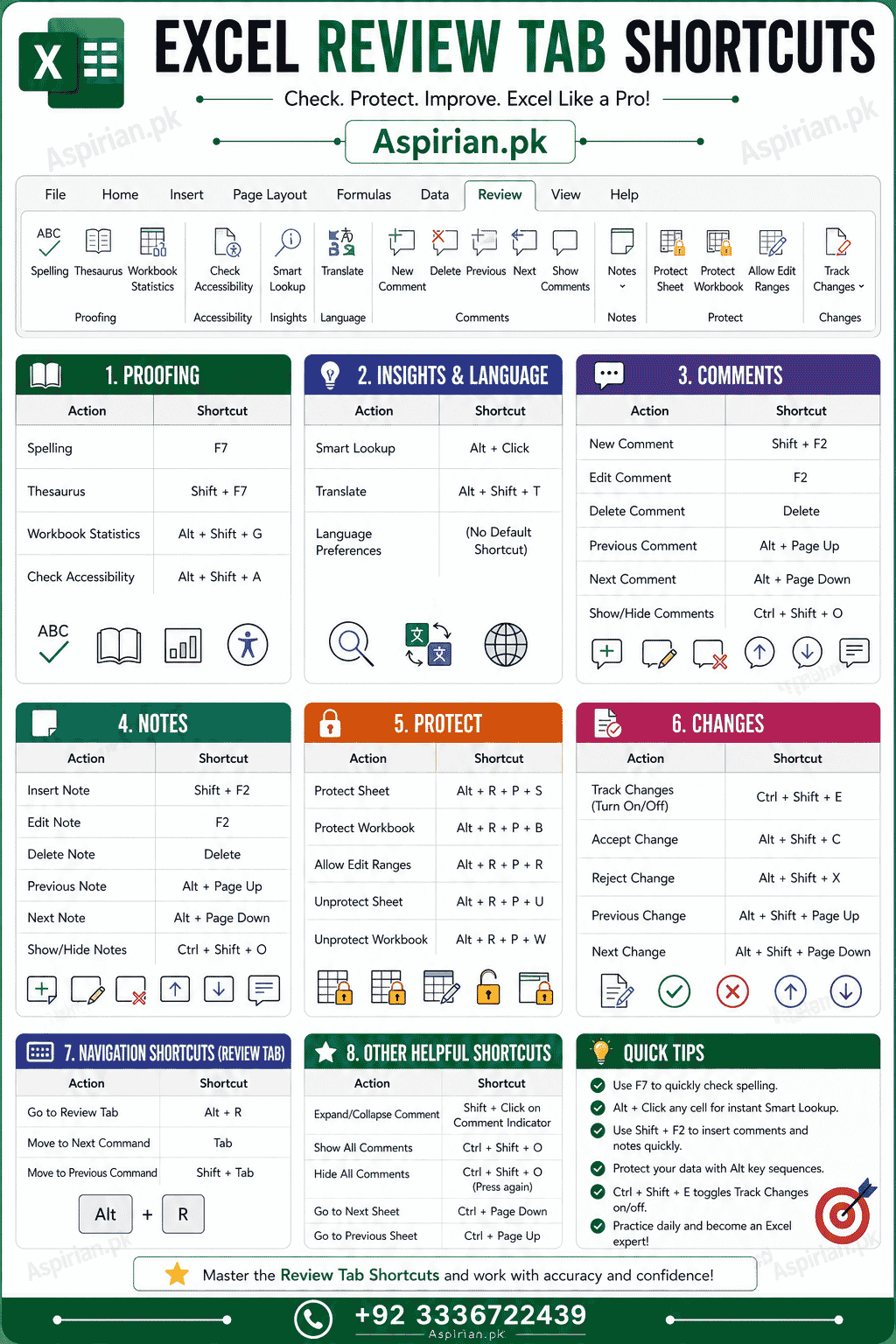
- Proofing Shortcuts
Spelling Check F7
Thesaurus Shift + F7
Research Pane Alt + R + S
Smart Lookup Alt + R + L
Translate Alt + R + T - Accessibility
Check Accessibility Alt + R + A - Language
Set Proofing Language Alt + R + U + S
Clear Proofing Language Alt + R + U + C - Comments
Insert New Comment Shift + F2 or Alt + R + C
Edit Comment Shift + F2
Delete Comment Alt + R + D
Previous Comment Alt + R + P
Next Comment Alt + R + N
Show/Hide Comments Pane Alt + R + P + N - Notes (Old Comments)
Insert Note Alt + R + N
Edit Note Shift + F2
Convert Note to Comment Alt + R + C - Protection
Protect Sheet Alt + R + P + S
Unprotect Sheet Alt + R + P + U
Protect Workbook Alt + R + P + W
Allow Edit Ranges Alt + R + P + A - Ink (for touch devices)
Action Shortcut
Start Inking Alt + R + I
Ink Editor Alt + R + I + E - Tracking
Track Changes (Legacy) Alt + R + L
Accept Change Alt + R + A
Reject Change Alt + R + J
Previous Change Alt + R + V
Next Change Alt + R + F
Key Features of Review Tab Shortcuts
The Review Tab shortcuts are essential for anyone who collaborates, proofreads, or secures data in Excel. With immediate access to spell-check, comments, notes, and sheet protection, you can review documents faster and avoid errors without interrupting your workflow. These shortcuts help maintain high-quality, professional spreadsheets—perfect for students, teachers, office staff, and data reviewers. Mastering them ensures stronger accuracy, better communication, and secure workbook management.
View Tab Shortcuts
The View Tab in Microsoft Excel controls how you see and interact with your worksheet. It includes essential tools like zooming, freezing panes, page layout views, gridlines, window arrangements, and workbook navigation. For students, accountants, teachers, data analysts, and office users, View Tab shortcuts make it easier to handle large spreadsheets, compare multiple sheets, and focus on specific data without distractions. These shortcuts help you customize your workspace, improve visibility, and manage complex worksheets more efficiently.
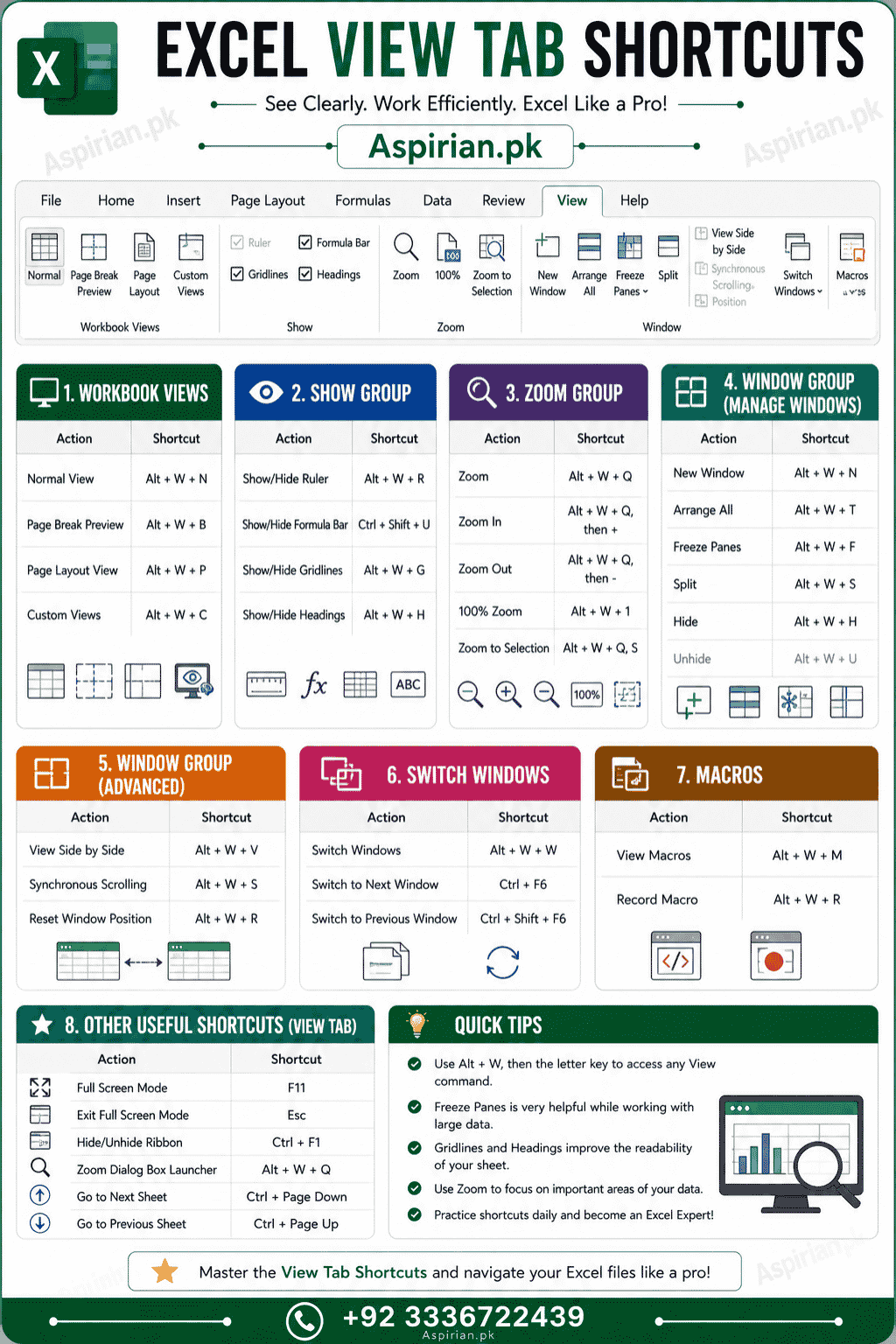
- Workbook Views
Switch to Normal View Alt + W + L
Page Layout View Alt + W + P
Page Break Preview Alt + W + I
Custom Views Alt + W + C
Full Screen (Old Version) Alt + V + U - Show / Hide
Show/Hide Ruler Alt + W + R
Show/Hide Gridlines Alt + W + V + G
Show/Hide Headings Alt + W + V + H
Show/Hide Formula Bar Alt + W + V + F
Arrange All Alt + W + A
Freeze Panes Alt + W + F + F
Freeze Top Row Alt + W + F + R
Freeze First Column Alt + W + F + C
Split Window Alt + W + S - Zoom
Zoom Dialog Box Alt + W + Q + Q
Zoom 100% Alt + W + J
Zoom to Selection Alt + W + G
Zoom In (Mouse Ctrl + Scroll Up) Ctrl + Mouse Wheel Up
Zoom Out (Mouse Ctrl + Scroll Down) Ctrl + Mouse Wheel Down - Window Management
New Window Alt + W + N
Arrange Windows Alt + W + A
Freeze Panes Alt + W + F
Hide Window Alt + W + H
Unhide Window Alt + W + U
Switch Windows Alt + W + W - Macros
View Macros Alt + W + M
Record Macro Alt + W + M + R
Use Relative References Alt + W + M + U
Key Features of View Tab Shortcuts
The View Tab shortcuts give you full control over how your worksheet looks and behaves, making large datasets far easier to manage. From freezing panes to switching views and adjusting zoom levels, these shortcuts help you focus on the data that matters most. Students and professionals can quickly navigate long spreadsheets, compare windows, hide distractions, and optimize workflow layout. Mastering these shortcuts ensures faster navigation, cleaner visibility, and a more efficient Excel experience.
Step-by-Step: How to Learn Excel Shortcuts Fast
Learning MS Excel keyboard shortcuts may seem difficult at first, but with the right method, you can master them faster than you think. Instead of memorizing long lists, focus on real usage, repetition, and progressive learning. Follow these simple steps, and within a few days, Excel shortcuts will become a natural part of your workflow.
Step 1: Start with the Shortcuts You Use Daily
Begin with shortcuts related to tasks you perform frequently—copy, paste, save, undo, formatting, and navigation.
These essentials build your shortcut muscle memory and boost your confidence immediately.
Step 2: Learn Shortcuts Tab-by-Tab
Focus on one Excel Tab at a time (Home, Insert, Formulas, Data, View, etc.).
This method prevents overload and helps you understand shortcut patterns better.
Step 3: Practice on Real Assignments or Sheets
Apply new shortcuts while working on actual Excel files—assignments, reports, datasets, or office sheets.
Real usage is 10× more effective than memorizing from a list.
Step 4: Use Cheat Sheets for Quick Revision
Keep a printable PDF or an image shortcut cheat sheet on your desk or desktop.
This allows instant reference and helps you remember shortcuts naturally.
Step 5: Master One Group Every Day
Break shortcuts into small categories (e.g., formatting, alignment, navigation).
Learning only 10–12 shortcuts a day builds mastery without stress.
Step 6: Use Keyboard More, Mouse Less
Force yourself to complete simple tasks with shortcuts only.
Even 30 minutes of shortcut-only practice per day dramatically increases speed.
Step 7: Test Yourself Weekly
Open a blank Excel sheet and try completing tasks using shortcuts only.
Track improvement in speed — this boosts motivation and retention.
Step 8: Revisit and Update Your Shortcuts
Excel updates bring new features and new shortcuts.
Stay updated and refine your personal cheat sheet over time.
Final Tips for Students
- Learn 5 shortcuts daily
- Practice on your real assignments
- Use shortcuts for formatting headings
- Save your work frequently
- Keep your files organized
These shortcuts will make your workflow faster, cleaner, and more professional.
Job Portal for Students & Freelancers
Looking for jobs or internships?
✔ Latest Jobs in Pakistan
✔ Freelancing Opportunities
✔ Remote Jobs
✔ Student Internships
📌 Aspirian.pk job portal helps you find online earning opportunities, career growth, and latest job updates.
Looking for a Better Job? Start Your Career Journey Today!
Find the latest fresh jobs, internships, online earning opportunities, and skill-based career options — all in one place.
Explore Free Online Tools on Aspirian.pk
Popular Free Online AI Tools You May Like
- Roman Urdu to English – A simple translator for basic sentences.
- Number to Words – Convert figures into words
- GPA & Grade Calculator – Calculate board percentages and grades.
- Age Calculator – Find your exact age
- MS Word to PDF – Word to PDF Converter
- Lorem Ipsum Generator – Professional dummy text tool.
Explore all tools here:
Free Online Tools for Students – Aspirian.pk

Boost Your Tech Career
Want to learn programming and freelancing skills?
✔ Python Programming
✔ Web Development
✔ Digital Markting
✔ WordPress Mastery
✔ AI Automation
✔ Freelancing Skills
✔ AI Tools Training
Start your journey towards a successful tech career today.

Frequently Asked Questions (FAQs)
1. Why should I learn Excel keyboard shortcuts?
Keyboard shortcuts speed up your work, reduce mouse dependency, and allow you to complete large tasks in seconds. They improve productivity and make your Excel workflow more efficient.
2. Are Excel shortcuts the same on Windows and Mac?
Most shortcuts are similar, but some differ because Mac uses the Command (⌘) key instead of Ctrl. Certain function-based shortcuts also vary slightly.
3. How long does it take to learn Excel shortcuts?
Most people can learn essential shortcuts within 3–5 days, and advanced shortcuts within 2–3 weeks if they use them consistently.
4. What is the best way to memorize Excel shortcuts?
Use a tab-by-tab learning approach, practice on real sheets, and keep a cheat sheet for quick revision. Repetition is the key to mastery.
5. Do Excel shortcuts work in Excel Online?
Yes, most shortcuts work, but a few may not work due to browser limitations. Desktop Excel offers the full shortcut experience.