Learn how to install Python on Windows with this beginner-friendly step-by-step guide. Download, install, verify setup, and run your first Python program easily.
Table of Contents
Introduction: How to Install Python on Windows?
👉 Why Installing Python Is Your First Big Step?
If you want to start learning Python programming for beginners, the first thing you need is Python installed on your computer.
Many students feel confused when they hear words like:
Installation
- Environment setup
- Path configuration
- Command Prompt
But don’t worry.
This Python installation guide is written for absolute beginners.
By the end of this lesson, you will:
✅ Download Python
✅ Install it correctly
✅ Configure settings
✅ Run your first Python program
What Is Python Installation?
Before installing, it’s important to understand what you’re actually doing.
When you install Python, you are putting the Python interpreter on your computer.
The interpreter is the software that reads and runs Python code.
Without it, your computer cannot understand Python instructions.
This is why learning how to install Python on Windows is the first technical step in your Python journey.
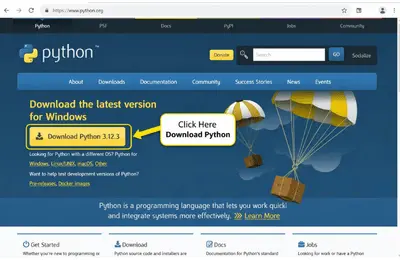
Step 1: Open Python Official Website
Visit the official Python website.
Look for:
Download Python
Always download Python from the official source to avoid harmful or outdated files.
Why This Step Matters
Downloading from unofficial websites can lead to:
❌ Malware
❌ Old versions
❌ Installation errors
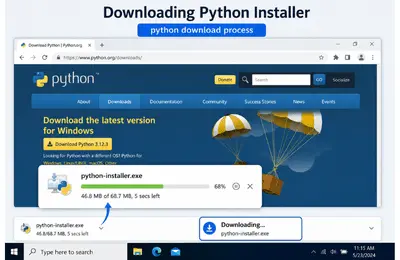
Step 2: Download Latest Python Version
Click the big download button.
Example:
Download Python 3.x.x
The file will start downloading automatically.

It usually takes less than 2 minutes.
Why Latest Version?
The newest version includes:
✅ Better performance
✅ Latest features
✅ Security updates
Step 3: Run the Installer
After downloading:
Double-click the installer file.
A setup window will open.
This is where many beginners make mistakes.
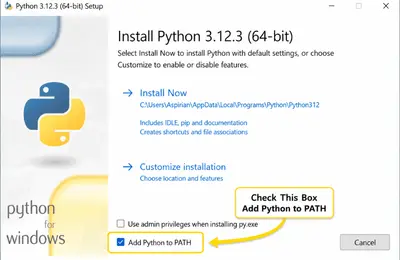
IMPORTANT:
Before clicking Install Now:
☑️ Check
Add Python to PATH
This step is critical.
Why Add Python to PATH?
It allows Windows to recognize Python from Command Prompt.
Without this option, Python may install but won’t run properly.
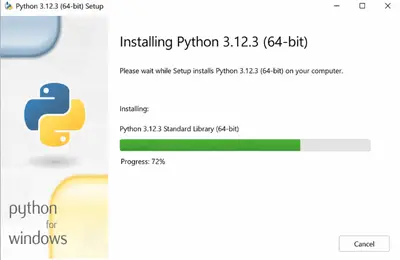
Step 4: Click Install Now
Once PATH is checked:
Click
Install Now
The installation process will begin.
Wait for completion.
This usually takes 2–5 minutes.
What Happens Here?
Windows installs:
- Python interpreter
- Standard libraries
- Command line tools
Step 5: Verify Installation
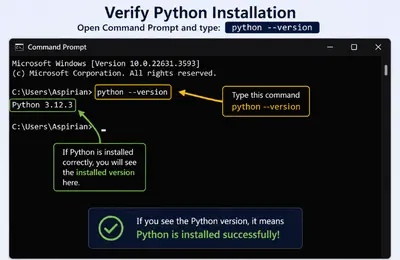
After installation is complete:
Open Command Prompt
Type:
python –version
Press Enter.
You should see:
Python 3.x.x
This confirms Python is installed successfully.
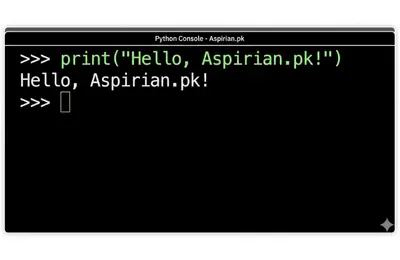
Step 6: Run Your First Python Program
Now type:
print(“Hello, Aspirian.pk!”)
And press Enter.
If it works — congratulations 🎉
You just ran your first Python program.
What This Means
This proves your Python setup is working.
You are now officially ready to learn coding.
Common Installation Errors Beginners Face
Error 1: Python Not Recognized
Cause: PATH not checked
Fix: Reinstall Python and check PATH
Error 2: Wrong Version
Cause: Old installer
Fix: Download latest version
Error 3: Command Prompt Error
Cause: Installation incomplete
Fix: Restart PC and retry
Why Installing Python Matters for Aspirian.pk Students
Once Python is installed, you can build:
- GPA calculators
- Student result systems
- Mini projects
- Automation tools
This is exactly how useful tools on Aspirian.pk are built.
What You Can Do Next
Now that Python is installed, you can begin writing real programs.
This is where your coding journey officially starts.
Platforms like Techfresh Guru also recommend mastering installation and setup before writing complex code.
Internal Linking (Aspirian.pk Strategy)
👉 Previous Lesson:
How Programmers Think – Logic Building Before Coding (Beginner Guide 2026)
👉 Next Lesson:
Your First Python Program Explained Line by Line, coming soon!
External Linking (Authority Signal)
For official reference and future learning:
Python Official Documentation (for reference & learning)
Final Thoughts
You’ve successfully learned how to install Python on Windows.
This is your first practical milestone in Python programming.
Now your computer is ready.
The next step is writing real Python code 🚀
Boost Your Tech Career with TechFreshGuru
While our Free Online Tools help you with daily translation needs, the future belongs to those who build the technology behind these tools. If you are inspired by the power of Free Online Tools like our Roman Urdu to English translator, it’s time to learn how to create them yourself.
Visit TechFreshGuru: Trending Courses 2026 to enroll in professional training:
- AI Fundamentals
- Python Programming
- Web Development
- Digital Marketing & SEO
- WordPress Mastery Course
Take the first step toward a successful tech career today at TechFreshGuru!
Aspirian.pk Free Online Tools
🔹 Free Online Tools on Aspirian.pk
- Percentage Calculator: Calculate your exam percentages instantly.
- CGPA Converter: Convert percentages to CGPA automatically.
- Roman Urdu to Englsih Converter: A simple translator for basic sentences.
All these tools are built using programming logic, making them perfect real-world examples for beginners.